Run trouble-free and secure online events
Meet the first video conferencing platform that makes hybrid and remote work simple.
Try Livestorm for freePlan better video meetings and video communication with our guide. Discover the best video conferencing software and find the perfect fit for your team.

Key Takeaways
Whether you work with a hybrid team or you have remote clients, you need a reliable system to manage communications. In other words, you need a video conferencing software solution.
Video conferences are the most efficient and flexible way to collaborate with a distributed team and communicate with clients remotely.
But you don’t need to rely on ad hoc setups or outdated software. From finding the right software to lighting your workspace like a pro, this guide will help you choose the best video conferencing tools.
Video conferencing is an online meeting between two or more people. It uses the internet to facilitate live, face-to-face interactions and collaboration through audio, video, screen sharing, and chat.
Video conferencing helps coworkers connect remotely for internal meetings, presentations, and webinars. It can also help you connect with clients from across the globe. Popular internal communication software like Zoom, Google Meet, or Livestorm can facilitate video conferencing in a variety of settings.
Video conferencing connects two or more users via audio and video. Most software in this category features high-definition (HD) video to ensure clear communication, good video quality, and limited technical issues.
Some video conferencing technology options are better for sharing information with large groups, as they allow meetings with up to 100 participants or more.
While some platforms are designed for broadcasting (i.e., a single speaker can share a video message with employees, colleagues, or clients), others are ideal for interactive calls (i.e., they allow multiple people to speak simultaneously).
Most platforms work with a variety of devices, including desktop computers, laptops, smartphones, and other mobile devices. In addition, some support calling in via a phone number.
The most common types of video conferencing are:
Internal meetings
Sales calls
Product demos
Webinars and training
Job interviews
Video conferencing works for internal communication formats like all-hands meetings.
For example, if you use Livestorm or Zoom, you can schedule company meetings, share a slide deck, and create breakout rooms for more focused discussion and collaboration during large company-wide meetings. Livestorm is ISO 27001-compliant, ensuring your conversations are private and secure.
Sales representatives can connect with potential leads anywhere in the world and build personal connections. Video conferencing makes virtual consultations and product walkthroughs easy.
For example, you can create one-to-one and many-to-many video meetings for your sales team. You can also convert call recordings into videos for sales and use them for marketing activities.
Let your clients see your product in action before they buy it. Set up product demo sessions to show the user interface, feature sets, and multipoint demonstrations.
You can also use Livestorm's collaboration tools for screen sharing, file sharing, and resource sharing to make demos more interactive.
Trainers, facilitators, and experts can use web conferencing software to host workshops, lectures, or webinars for a global audience. With Livestorm, you can create virtual classrooms with multiple attendees and add polls to collect insights and assess their understanding.
Schedule one-on-one or group interviews to assess candidate skills, culture fit, and experience. Many platforms integrate with Google Calendar, which is handy for directly inviting candidates by email and blocking time in their calendars. You can also create virtual waiting rooms to hold your next candidate while you finish up the previous interview.
The Future of Video - Panel discussion
Join our three experts from Livestorm, Rev.com and Vonage as they discuss the Future Trends of Video.
WatchWhile video conferencing is a useful tool for modern communication and collaboration, there are some downsides like screen fatigue, technical hiccups, and privacy concerns. Here's a look at the pros and cons of video conferencing:
Most businesses find video conferencing makes communication with all kinds of stakeholders far more flexible. With the right software, you can:
Connect instantly. No matter where your team or clients are located, you can meet instantly anywhere you have an internet connection.
Boost sales. You can connect with clients globally and meet more people in a day. You can also use pre-recorded, downloadable product demos to boost conversion on your website.
Save money. You don’t need expensive meeting rooms or rented office space to meet remotely. Choose video conferencing software that suits your needs, and internal communications will continue just as smoothly.
Be efficient. You’ll spend less time on admin when you create recurring meetings that sync with your calendar and can send automatic email invites and reminders.
Make data-driven decisions. Use video conferencing services with reporting tools to understand audience trends and improve your live events.
When using a video conferencing platform for your business, you might be worried about how it could negatively affect internal communications. Here are some potential disadvantages (and how to overcome them):
Technical difficulties. Avoid technical issues by testing your software ahead of time and opting for a browser-based platform with excellent ease of use. This way, all attendees need to do is click a link to attend, eliminating time spent downloading apps and creating accounts.
Your meetings might feel less personal. Encourage everyone to have their cameras on for a start. Of course, some people may keep their cameras off (for privacy reasons), but you can still incorporate a few icebreaker questions and activities to build a sense of connection.
Meeting attendees might get distracted. When everyone is joining a meeting remotely, you have limited control over their environment. They might be in a busy coffee shop, commuting, or home with the kids. Establish basic video etiquette from the top (like muting yourself when you’re not talking) and set up meeting checklists to keep things focused.
With the right setup, it’s easy to engage with prospects, customers, and team members in real time. So we’ve dug right into the reviews of the best video conferencing apps on the market to help you decide. Here’s what we found:
Livestorm: Best for interactive events
Zoom: Best for simple basic calling
Webex: Best for collaborating outside of calls
Google Meet: Best for a tight budget
Microsoft Teams: Best for document collaboration
GoTo Meeting: Best for a simple, no-frills solution
ClickMeeting: Best for video calls with large audiences
Zoho Meeting: Best for enterprise users
AnyMeeting: Best for video and phone conferencing
Dialpad Meetings: Best for AI-enhanced productivity
TeamViewer: Best for remote access
Vonage Meetings: Best for international video calls
Sessions: Best for interactive video conferences
U Meeting: Best for small virtual meetings
TrueConf: Best for on-premises infrastructure
RingCentral Video: Best for AI-powered video meetings
Skype: Best for free video calls
Slack Huddles: Best for instant team connections
Amazon Chime: Best for enterprise communications
Nextiva: Best for VoIP-enabled teams
8x8: Best for streaming to large audiences
Lark: Best for real-time collaboration
Pumble: Best for video meetings on a small budget
Whereby: Best for API or SDK integration
Gather: Best for an immersive virtual environment
Whether you need software for small business or enterprise, here are the best free and paid options for your needs. Let's explore video conferencing features, pros, and cons of the top 25 platforms.
Livestorm is a video engagement platform designed to host interactive webinars and virtual events that drive results. At Livestorm, we believe that neither external nor internal communication should be dull, so our platform is a top choice if you’re looking for powerful engagement features to motivate attendees.
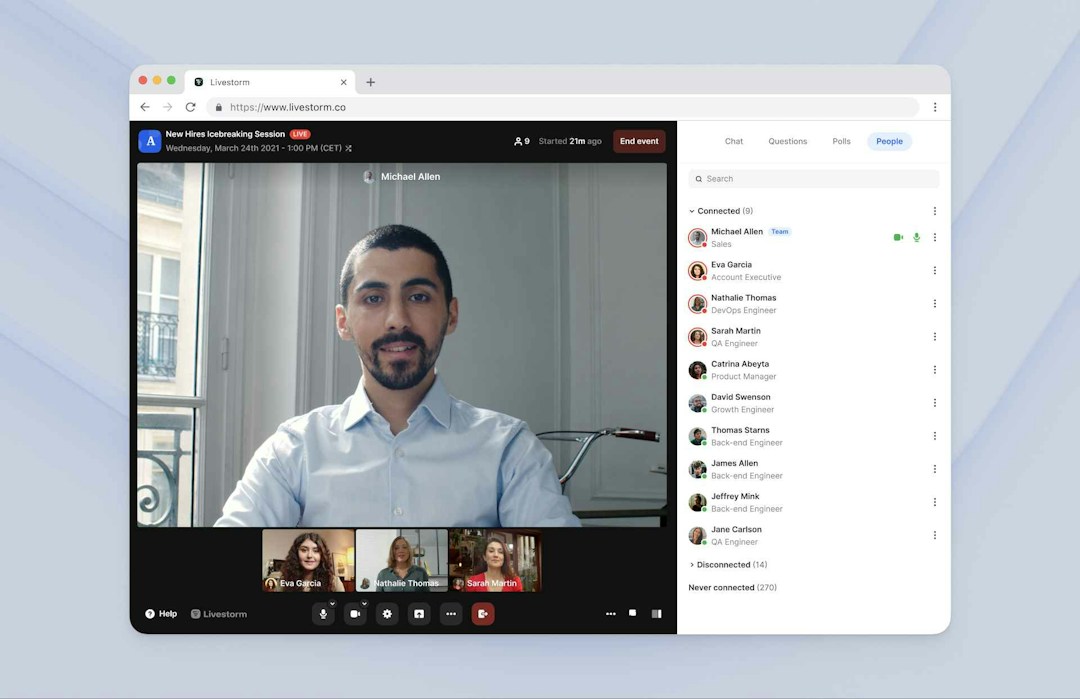
Livestorm is browser-based, so there's no need to download and install an app. Webinars and virtual events are super easy to set up and access: all your attendees need to join is the meeting link.
It’s an all-in-one platform you can use for everything from internal communications to live webinars.
If you’re looking for a secure software platform, Livestorm is a smart solution. Plus, it's the number one choice for engagement because it includes this robust feature set:
Breakout rooms
Screen and media sharing
Chat
Q&A and question upvoting
Live polls
Hand raising
Emoji reactions
Automatic transcription
Custom branding
Automated email invitations and reminders
Unlimited recording
Detailed reporting for metrics like the number of users, replay views, and traffic data
Integration with third-party apps like Visme, Miro, Slack, Google Calendar, and HubSpot
Livestorm is one of the only video conferencing platforms that offers a free trial with no expiration date, so you can give it a complete test drive before you hand over your credit card details. Take a look at our pricing page to see all that’s included.
The free-forever plan is ideal for forward-thinking small businesses and teams looking to host interactive online events on a tight budget. Here’s a sneak peek of what you can get from the best free video conferencing platform:
Webinar automation
30 active contacts in the integrated CMS
Customizable registration page creation for live and on-demand events
25 multiple speakers
Access to most integrations
Access to all engagement features
Meeting rooms available in English, French, German, Portuguese, Spanish, and 19 other languages.
Team-wide accounts
Email reminders
A free library of video conferencing backgrounds
The paid version is more suited to growing businesses and larger companies that host bigger, longer live sessions with multiple hosts and attendees.
Zoom is a household name for video calling, setting the precedent for easy-to-use video conferencing software. But it has limited customization options when compared to Livestorm.
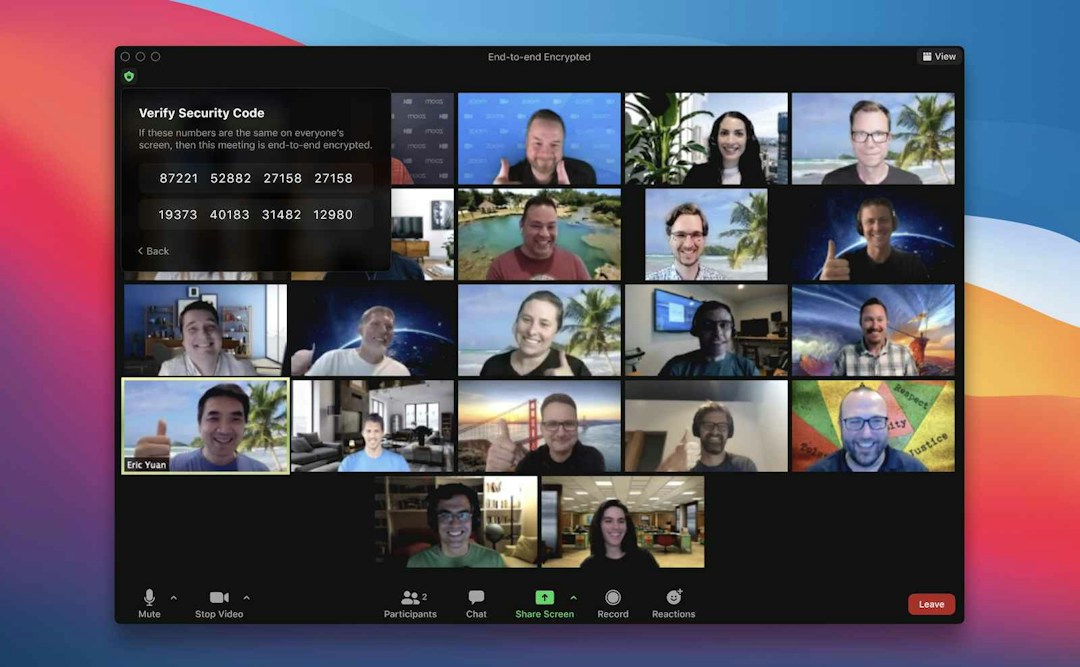
Zoom has become a popular video conferencing option for webinars and professional training. It has essential features like presentation sharing and breakout rooms for more in-depth discussions.
The free video conferencing plan includes meetings up to 40 minutes and basic interactive tools. The Business plan includes:
300 participants
30hr meetings
Private and group chat during meetings
Meeting recordings
End-to-end encryption (E2EE)
Integrations with Slack, Google Calendar, Shopify, Discord, LinkedIn and Salesforce
Zoom’s free plan offers:
Meetings up to 100 participants
Unlimited 1:1s
Group meetings (3-100 attendees) of 40 minutes in length
Zoom mail and internal calendar in Beta
The free plan is limited in terms of features and access to other Zoom products. With the paid version, you can host webinars, build automation, or registration pages, and do live polling. If you want to test webinar hosting functionalities for free, you might be better off with a Zoom alternative like Livestorm.
Zoom can now be used in your browser, but it was originally built as an app-based product. It works best in-app, especially on smaller devices, but even then, users do report difficulty using the mobile app. Be warned: the free version caps meetings at 40 minutes.
Webex by Cisco lets you to connect remote attendees with people in physical conference rooms that have Cisco video conferencing systems. You can connect through conference calls and Voice over IP (VOIP) phones. The platform's transcription feature is available in 13 languages, letting you host multilingual conversations.
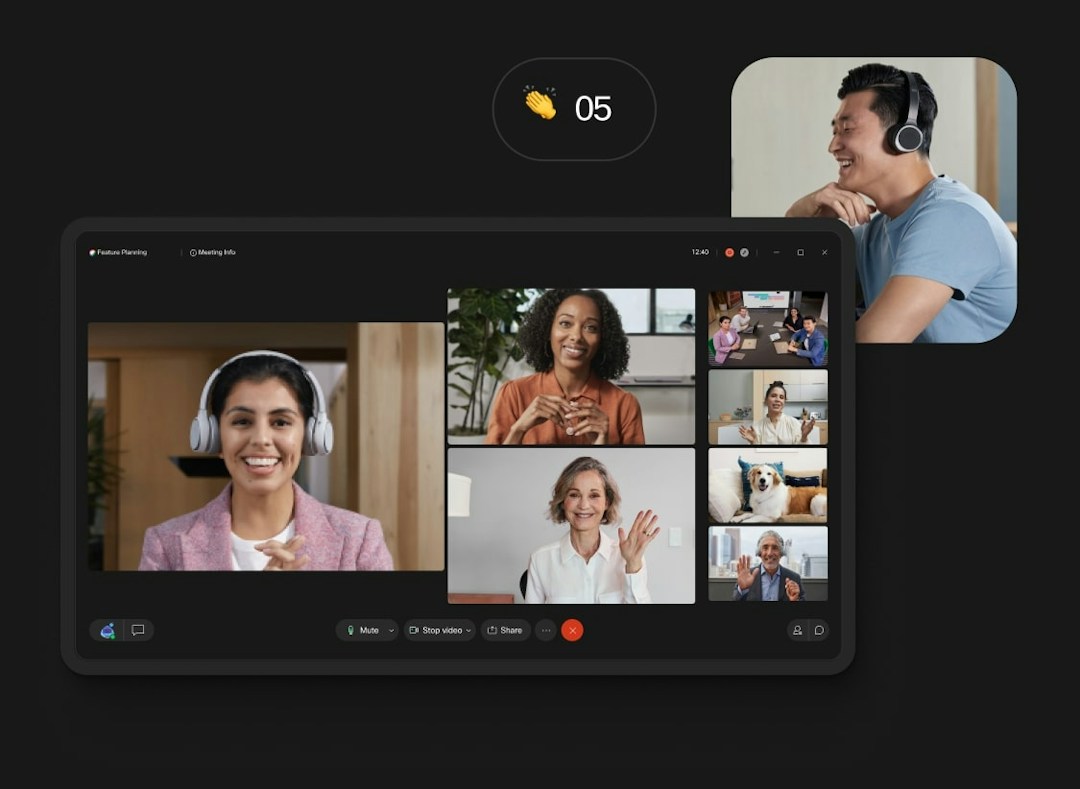
Webex offers co-browsing, in-platform messaging, and file transfer outside of traditional video calls, making it a combined communication platform for businesses to collaborate online. The Starter plan includes:
50 hosts
24hr meetings
Chat during meetings
Integrates with all Cisco hardware
Personalized meeting room layout
Webex free plan offers:
Meetings up to 40 minutes
100 participants per conference call
Meetings on-the-go (using Apple’s CarPlay integration)
Local meeting recordings
The free plan is limited as you can only have one host per meeting and don’t have cloud storage space for saving meeting recordings. Plus, with the free version, you don’t get access to live captioning, file transferring, or polling.
Webex is billed as “one app for everything,” but, as a result, the user interface is over-complicated. Unfortunately, some engagement features like polling can only be used in-app, plus you will have to pay extra for encrypted cloud recordings and cloud storage.
Google Meet is a browser-based video conferencing software on computers but requires an app to access from your phone or tablet. As it’s a part of the Google Suite, you can send Google Calendar invites with a Meet link automatically attached.

Google Meet integrates with the Google ecosystem. With a free Google account, you can host 60-minute meetings using Google Meet at no extra cost, making it one of the more cost-effective options. If you do decide to go down the paid route, a Google Workspace subscription starts at around $6 and includes:
100 participants
24hr meetings
Chat during meetings
Google Meet’s free plan is one of the most complete in terms of meeting length and audience size. With the unpaid version, you get:
Unlimited 60-minute calls with up to 100 participants.
Engagement features such as emoji reactions, in-app chat, and interactive whiteboard.
High-quality audio.
The free tier has some limitations in terms of features. Free Meet users don’t have access to polls, Q&A tab, breakout rooms, live streamings, recordings, and international dial-in numbers. Plus, event organizers must have a Gmail account.
Although Google account holders will find the free plan pretty accessible, it’s not as well-rounded when it comes to built-in features. You’ll need to pay extra for basic engagement features like polling, Q&A, and hand-raising.
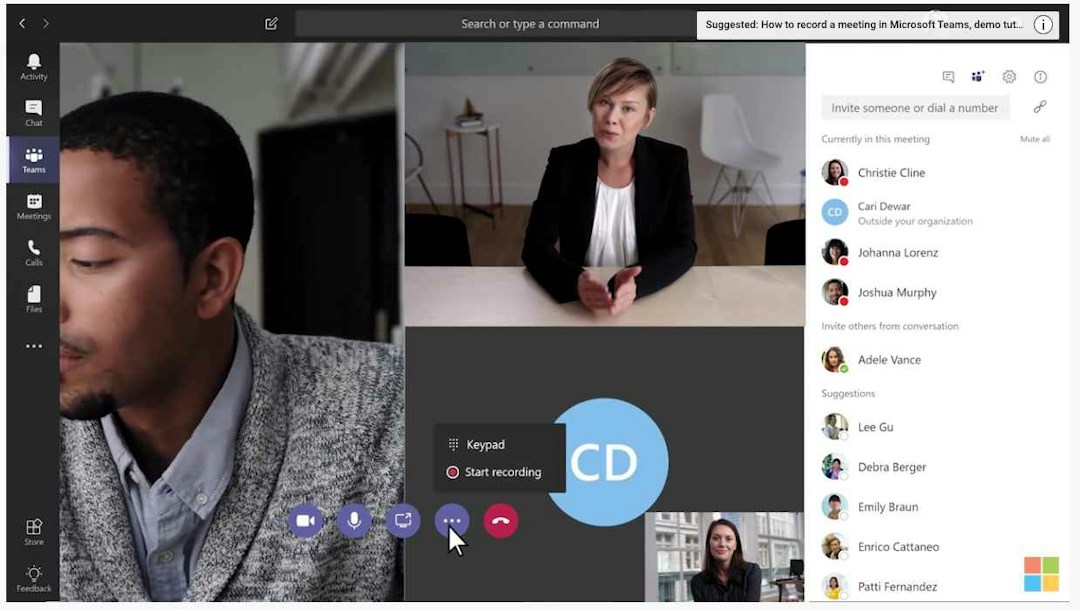
Microsoft Teams integrates with Office apps like SharePoint, Word, and Excel, allowing users to collaborate on live documents in a shared workspace. It's available as part of Microsoft 365 business and essentials subscriptions.


6 Email Templates for Successful Virtual Events
Access these 6 email templates to drive attendance to your virtual events.
Learn moreIf you’re looking for more ways than just a video call to collaborate remotely with your team, this is a good option. As well as working on shared documents, you can schedule virtual meetings that integrate with your Outlook calendar. The Microsoft Teams Essentials plan includes:
300 participants
30hr meetings
Chat during (and outside) meetings
The free plan supports up to 100 attendees for conferences of up to 60 minutes hosted in the app or web browser. You can use the instant messaging app for direct messaging, group chat, and in-call chat with meeting attendees.
Using Teams for free solves your basic conferencing needs. However, the storage space in OneDrive is limited to 5GB and the security measures on the free plan aren’t enterprise-ready.
Microsoft Teams definitely isn’t the best option if you’re looking for straightforward, slick video conferencing. Its focus on document collaboration makes it a complicated beast that many users find difficult to navigate and prone to outages.
GoTo Meeting is an online meeting platform that supports browser-based video conference calls. It offers video conferencing for small business and large companies alike, yet the platform provides enterprise-level security for all users.
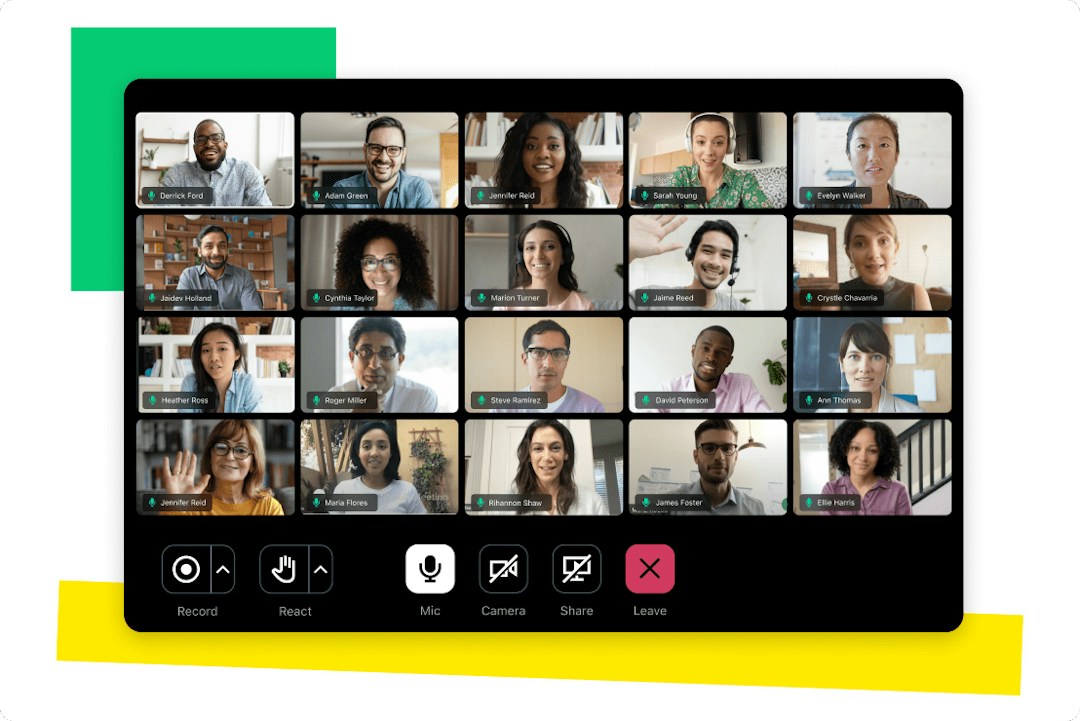
It's a basic, no-frills platform that simplifies video conferencing and is easy for anyone to use without an app download. Yet it's also part of the GoTo suite, which includes GoTo Webinar for virtual events, GoTo Training for virtual training, and GoTo Connect for unified communications.
If you purchase GoTo Meeting individually, the Professional plan includes:
150 participants
Unlimited meetings
No meeting time limits
Chat during meetings
If your needs go beyond basic video conferencing, you'd have to pay an extra monthly fee to add on GoTo Webinar or toll-free calling. In addition, all GoTo Meeting plans also include basic engagement tools like screen sharing and hand raising. But you'd need to upgrade to access advanced options like drawing tools, note-taking, transcriptions, and cloud recordings.
ClickMeeting is a video calling and conferencing platform that works for one-on-one conversations or events with 1,000+ participants. It's designed for use cases ranging from product demos and business meetings to training sessions and online courses.
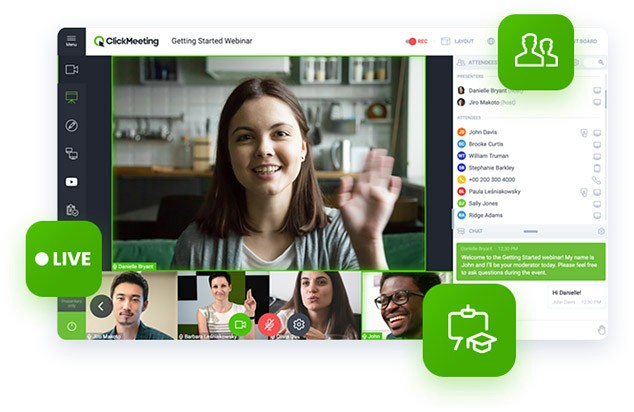
This platform supports interactive calls with up to 40 people who can speak, listen, and brainstorm together. With ClickMeeting, you also get access to presentation tools like whiteboards, screen sharing, and chat tools. You can schedule meetings in advance or connect instantly.
The Live plan includes:
Up to 1,000 attendees
6 hours of recording storage
1 GB of file storage
Private chat and chat moderation
All plans support up to 1,000 attendees. But if you need to host over 1,000 participants, you'd need to upgrade to an enterprise plan. ClickMeeting can also get expensive if you need to host simultaneous video conferences, as the platform requires a paid add-on for parallel events.
Zoho Meeting is an online meeting software platform with interactive tools, industrial-standard security, and capacity for up to 5,000 attendees. Participants can join via the desktop or mobile app or call in via a local number. Hosts can record and download meetings to share offline.
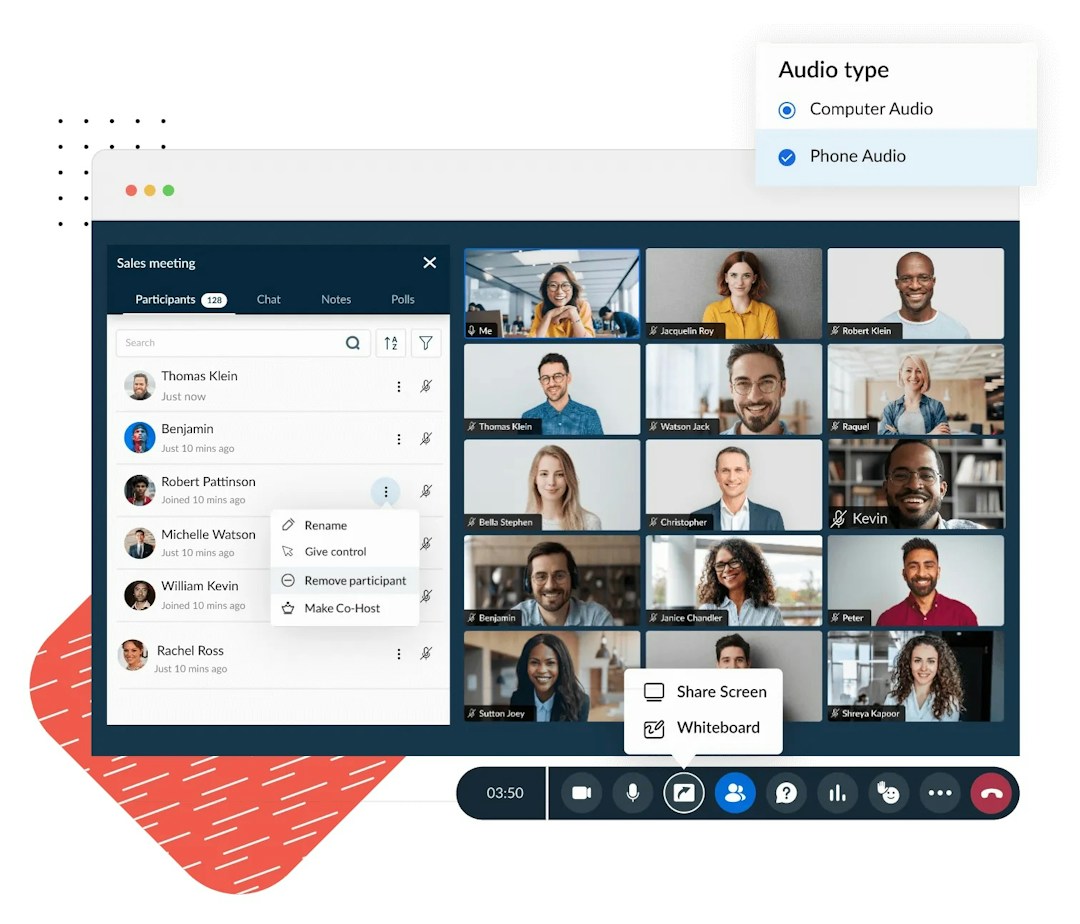
As a complete video conferencing solution, Zoho Meeting works for both calls and webinars. Unlike many other platforms, however, this one doesn't charge an extra monthly fee for webinar capabilities. It also has a full range of interactive tools, including chat, reactions, whiteboards, annotations, polls, and screen and file sharing.
The Standard Meeting plan includes:
Unlimited meetings and webinars
24hr time limit per event
2 co-hosts
Cloud recording storage for up to 10 meetings per host
Zoho Meeting is best for live events for large groups. If you need to record meetings frequently or if you want to host a lot of face-to-face meetings for small groups, it's less ideal. You'd have to pay an extra annual fee for more recording space or for meeting rooms.
AnyMeeting is a video conferencing platform designed for both large and small teams. Since it integrates with Google Workspace, Slack, and Microsoft Teams, it lets you start or join meetings from the tools you already use.
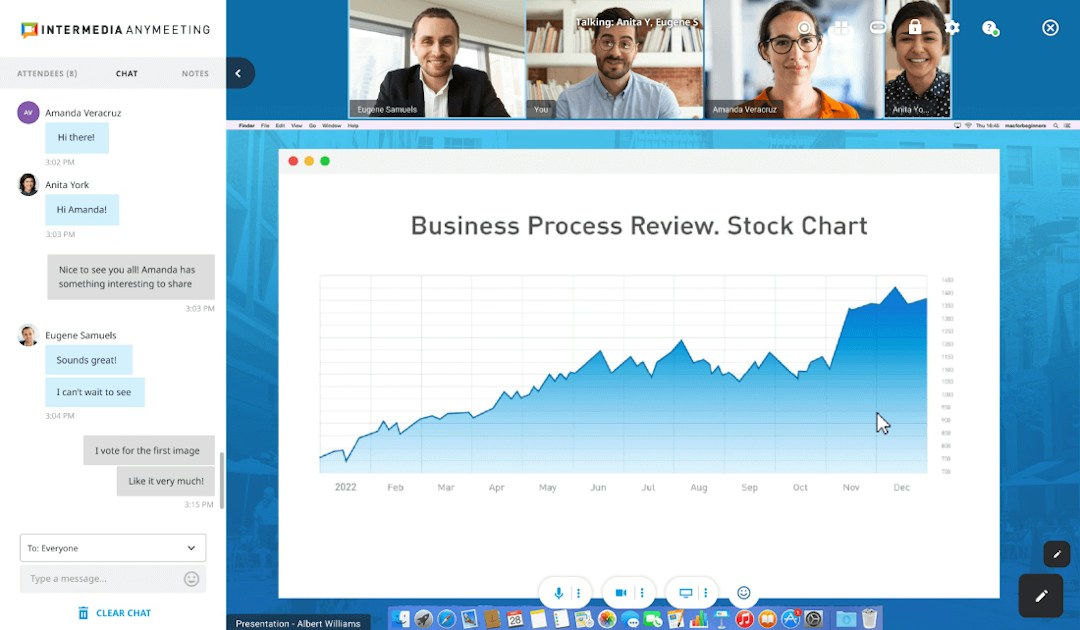
Intermedia AnyMeeting supports GDPR and HIPAA compliance, which set the stage for secure meetings and more peace of mind. This platform also has interactive tools and productivity features like:
Real-time screen annotation
Unlimited meeting storage
Automated meeting note distribution
Meeting transcripts with action items
AnyMeeting doesn't publish pricing publicly. To get a custom quote for your organization, you'd need to contact the sales team.
This meeting platform also requires a desktop or mobile app download. That means it may be less ideal for external meetings.
Dialpad Meetings is an AI-powered collaboration platform for one-on-one video meetings and large video conference calls. Meeting hosts and attendees can save time with the platform's AI assistant, which automatically generates meeting transcriptions and action items.
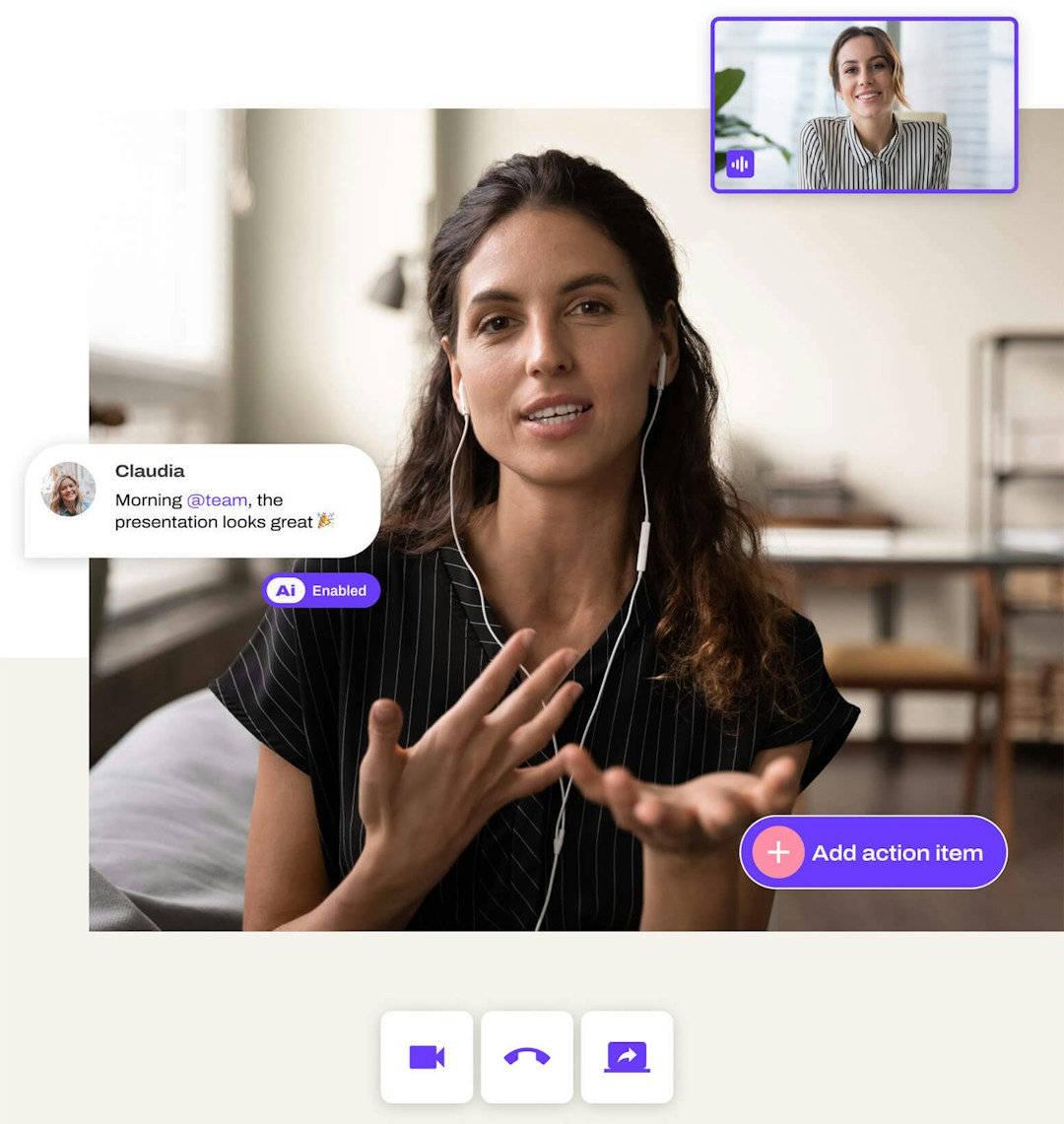
This platform works as a video conferencing solution and as a screen sharing app, so it's helpful for communicating in the style that works best for your team. For small or bootstrapped teams, Dialpad Meetings has a free plan that allows 45-minute meetings with up to 10 participants.
Business plans include:
5hr meeting limit
150 participants
Unlimited audio and video recordings
While the Dialpad Meetings free plan is relatively generous, it doesn't include any of the AI tools that make this platform unique. You'd have to upgrade to a paid plan to access automated summaries, transcriptions, and action items. You'd also have to upgrade if you want to add on other elements of the Dialpad ecosystem, such as AI-powered sales or customer service tools.
TeamViewer Meeting is a video conferencing platform with remote access capabilities. It's part of the TeamViewer suite, a remote access and support software application for IT, sales, and customer service professionals.
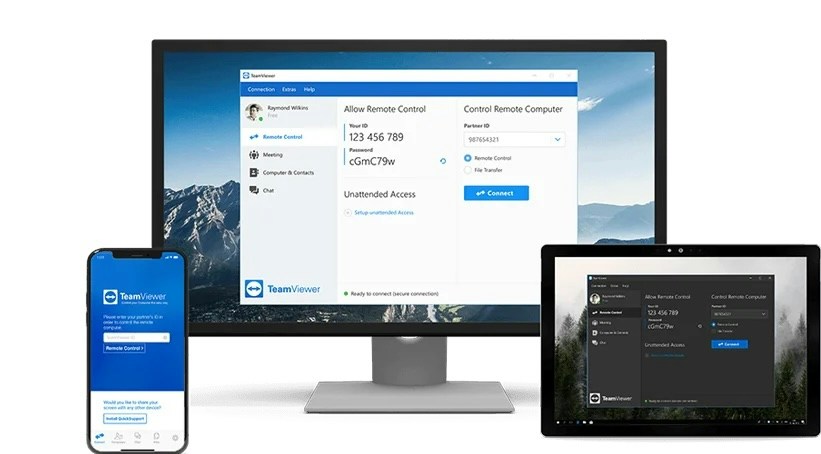
TeamViewer supports HD video calls and has built-in collaborative features like 4K screen sharing and shared screen recordings. It offers end-to-end encryption and password protection.
The TeamViewer Meeting 50 plan includes:
50 participants
1 organizer
Apps for desktop and mobile
Mid- and top-tier plans also include remote control access, which allows meeting participants to control the screen during screen sharing.
This video calling tool is available as part of the TeamViewer suite. Organizations that aren't using or considering TeamViewer will find better options elsewhere on this list.
Vonage Meetings is the video conferencing component of the Vonage Business Communication suite. It's available via desktop or mobile app and includes dial-in numbers for up to 60 different countries, making it a good choice for international teams.
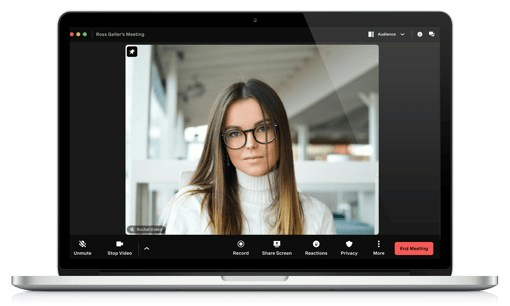
With Vonage Meetings, you can engage attendees with emoji reactions, roundtables, and screen sharing. You can also collaborate with whiteboards and chat while monitoring active and inactive participants. You can schedule meetings in advance or start them instantly from Vonage team messaging tools.
The mid-tier Premium plan includes:
200 participants
Unlimited meetings
Recordings to share asynchronous meetings
Vonage Meetings is part of the Vonage Business Communication suite, and it's available with mid- and top-tier plans only. If you don't need a complete business communication solution with SMS, VoIP, and call recording, you'll find better options elsewhere on this list.
Sessions is a virtual meeting platform with AI-powered tools for more efficient collaboration. It works for live calls and conferences, and it also supports interactive workshops with breakout rooms. Sessions can also help you keep meetings on track with agendas.
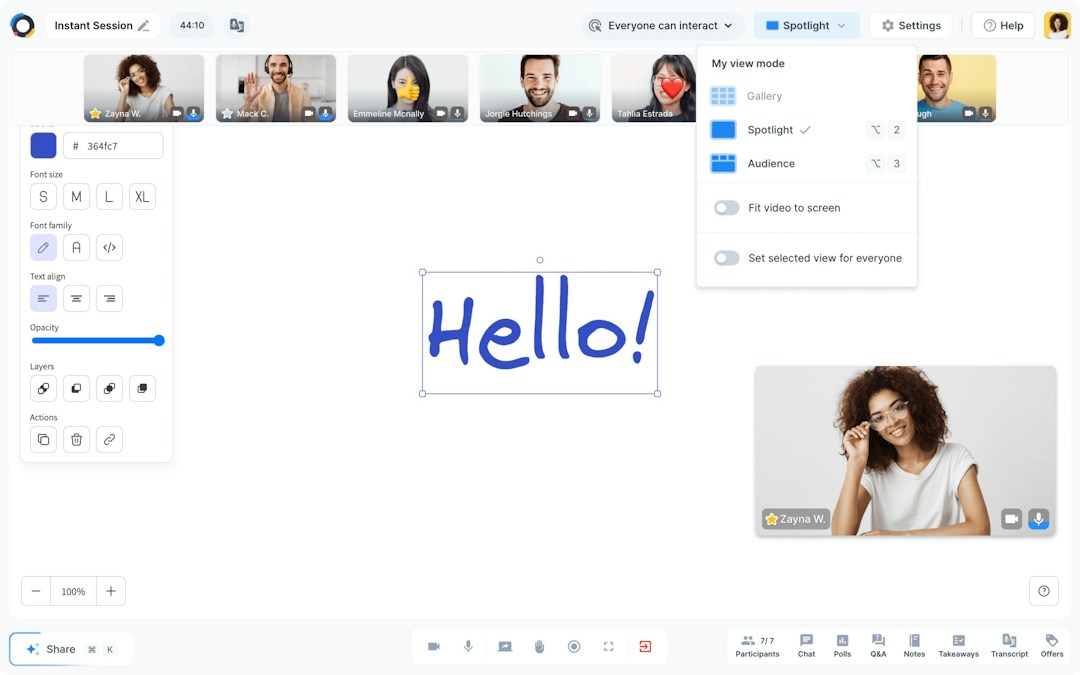
When you want to host engaging, interactive video calls, Sessions has plenty of tools. Meeting hosts can show websites, whiteboards, slides, videos, and more. During calls, you can engage with attendees via interactive polls and live chat. Afterward, you can share AI-powered meeting transcripts.
Sessions has a free plan that allows up to 25 participants per call. The (paid) Solo plan includes:
50 participants
4hr sessions
20 hours of cloud recording per month
Note that you'd have to upgrade to the mid-tier Starter plan to access team features and workspaces.
Sessions is relatively affordable for single users, but it can get expensive for teams. To access any team features and workspaces, you'd have to upgrade to the mid-tier Starter plan. Since Sessions charges per user, large teams may end up overspending.
U Meeting is a video conferencing and distance learning platform that allows up to a dozen simultaneous video feeds. It supports invitation-only meetings, password-protected video calls, and scheduled meetings for teams. U Meeting also offers access via mobile or desktop app or via browser.
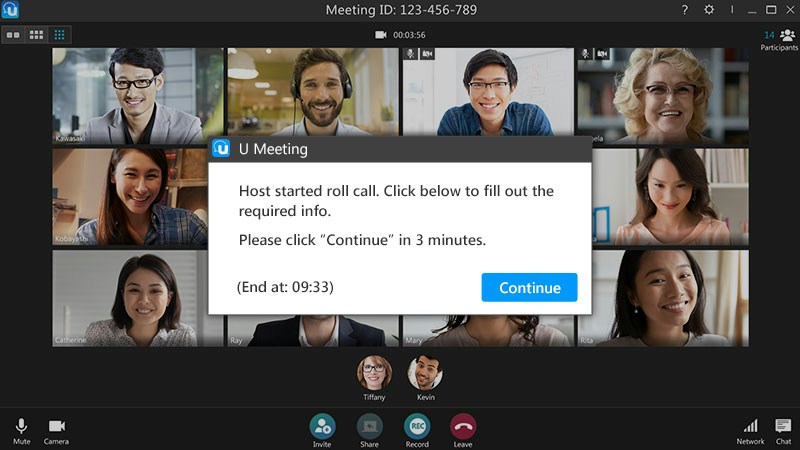
With U Meeting, you can host virtual meetings, team training, or customer onboarding sessions for up to 200 participants. To engage attendees, hosts can use a wide range of interactive tools, including:
Breakout sessions
Virtual whiteboards
Screen and audio sharing
Annotation and laser pointer tools
Roll call tools to take attendance
U Meeting doesn't publish pricing publicly. To get a quote, you'd have to contact sales. In addition, U Meeting is less ideal for large video calls. If you need the ability to host more than 200 attendees, another option on this list would be a better choice.
TrueConf is a video conferencing and corporate messaging platform. It's designed for enterprise users who need a secure, scalable solution with on-premises server infrastructure rather than a cloud-based option.
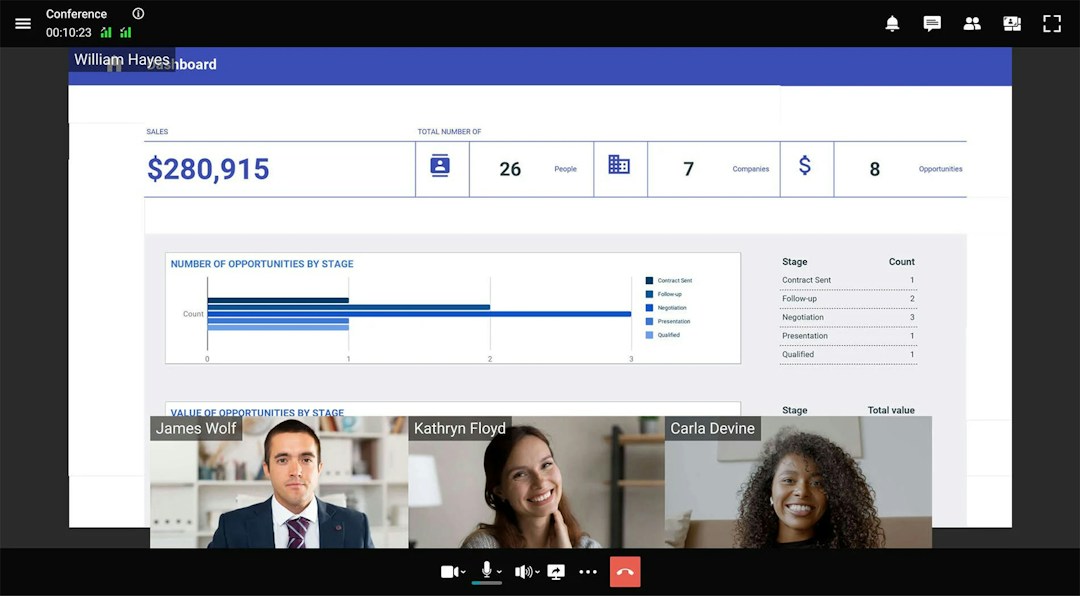
As a unified communications platform, TrueConf offers video conferencing for larger groups, video calls between two users, and team messaging with file sharing and data storage. The TrueConf Server plan includes:
Video conferencing for up to 1,500 participants
One-to-one video calls in 4K Ultra HD
Team messaging with personal and group chats
Collaboration tools like polls and reactions
TrueConf has a free plan, but it's relatively limited. On the free plan, video conferences can include 10 participants only. To host up to 1500 participants, you'd need to contact the TrueConf sales team to get a quote for a paid plan.
As an AI-powered platform for video meetings and conferencing, RingCentral Video is designed for teams to work together efficiently. Since it offers a browser-based experience (i.e., no app download necessary), it works for both internal and external connections.
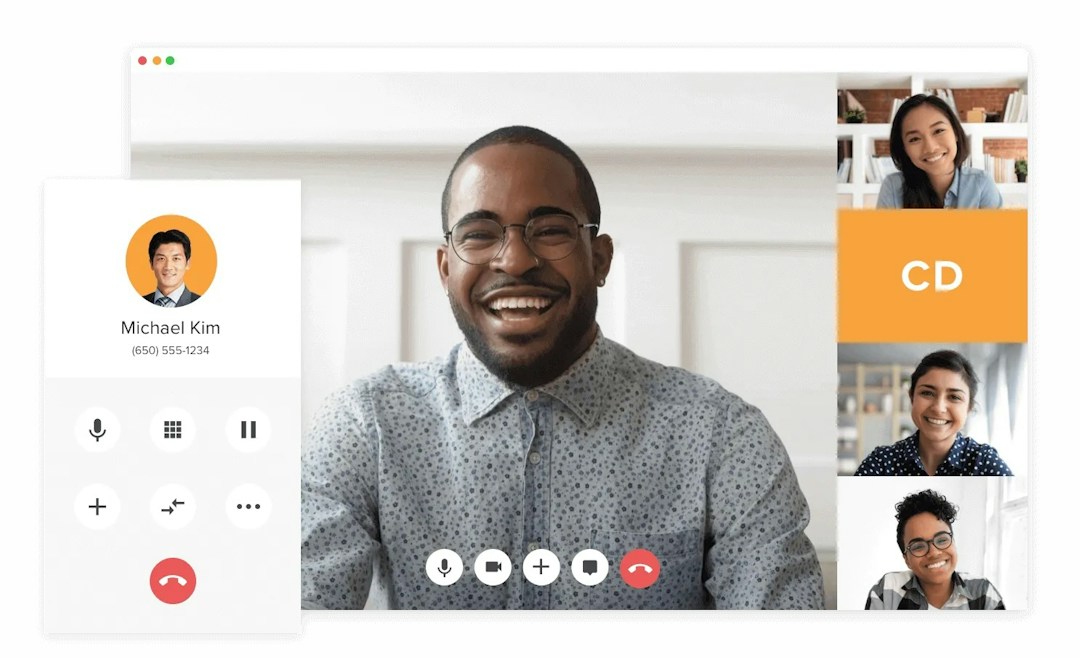
The platform's AI-powered tools transcribe calls, produce meeting summaries, and generate video highlights to help you make better use of work time. RingCentral Video also has tools like whiteboards, breakout rooms, and huddles for more efficient work.
The Core plan includes:
100 video meeting participants
1,000 audio meeting participants
Unlimited video call recording with one year of retention
If you want to use RingCentral Video for more than just video meetings, you'd need to purchase one or more add-ons. For example, you'd need RingCentral Rooms for dedicated meeting rooms, RingCentral Webinars for virtual presentations, and RingCentral Events for virtual or hybrid events. Each one requires an additional fee.
Skype is a video calling platform that supports video conference calls and video group chats. As a browser-based tool, it doesn't require a download. But frequent users can opt to use the Skype desktop or mobile app instead.
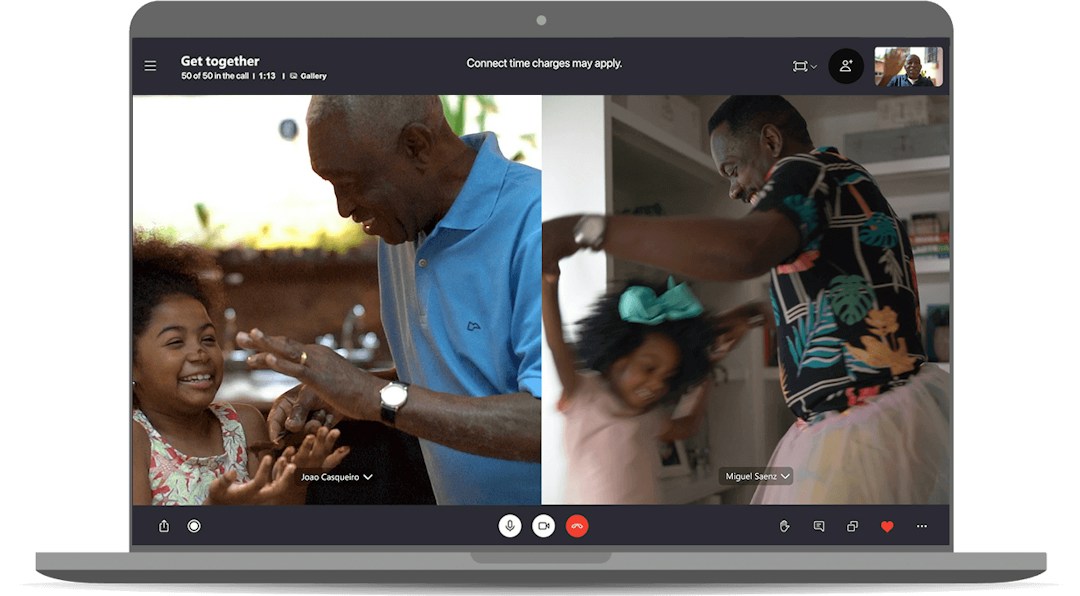
With Skype, you can connect one-on-one or invite dozens of colleagues or employees. All plans include call recording, screen sharing, and background blurring.
Skype video conferencing is completely free to use and allows:
100 participants
24hr calls
As one of the simplest video conferencing options on this list, Skype is missing some interactive and AI-powered features. If you need collaborative tools like whiteboards and polls or AI tools like transcription and summaries, you'd be better off with another tool.
Slack Huddles is a virtual space where teams can start audio or video calls and host brainstorming meetings directly in Slack. If your team already uses Slack for internal messaging, Huddles lets you chat face-to-face with a single colleague or with a larger group.
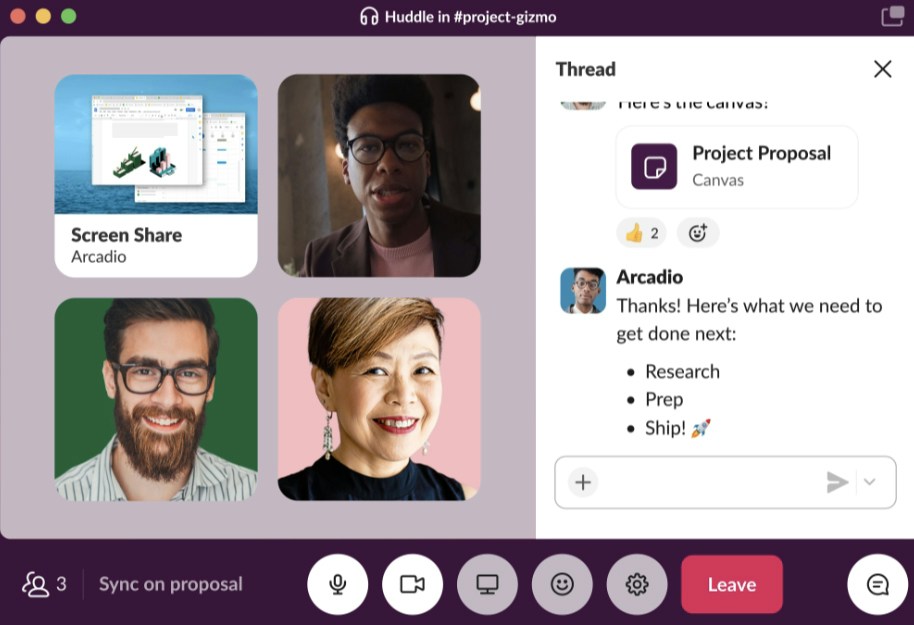
With Huddles, you can start video meetings instantly and use Slack's built-in collaborative tools. The app includes:
Emoji reactions
Screen sharing
File sharing
Slack automatically saves any files and messages you share during a Huddle so you can keep working on them together.
With Slack’s free-forever plan, you get access to a secure instant messaging platform and unlimited 1:1 calls.
The biggest limitation of the Slack free plan as a video conferencing platform is that you can’t meet with multiple people at the same time.
If you need to set up a video call with more than 50 people or a video conference with people outside of your organization, Slack Huddles isn't the best option. The free plan allows only two participants per call, and paid plans limit Huddles to 50 people.
Amazon Chime is a unified communication platform where your team can host video meetings, chat with colleagues, and make business calls. It's designed for enterprise communication and has 200+ dial-in numbers for attendees located around the world.
When you host HD video meetings with Amazon Chime, you can collaborate via screen sharing and meeting chat. Since the app calls attendees when meetings are ready to start, Amazon Chime can help your team avoid unnecessary waiting time.
Unlike most video conferencing platforms, Amazon Chime charges by usage rather than by user. As a result, anyone can use free tools on the Basic plan and paid features on the Pro plan—and only pay when they actually use Pro features.
Because Amazon Chime uses a pay-per-use pricing model, costs can fluctuate from month to month. If you need to budget for a consistent monthly subscription fee, choose a platform with a pay-per-user model instead.
With Nextiva, you can collaborate with colleagues, employees, and customers using video conferencing and chat over VoIP. Nextiva has desktop and mobile apps for your team, and attendees outside your organization can join via web browser or by dialing in.
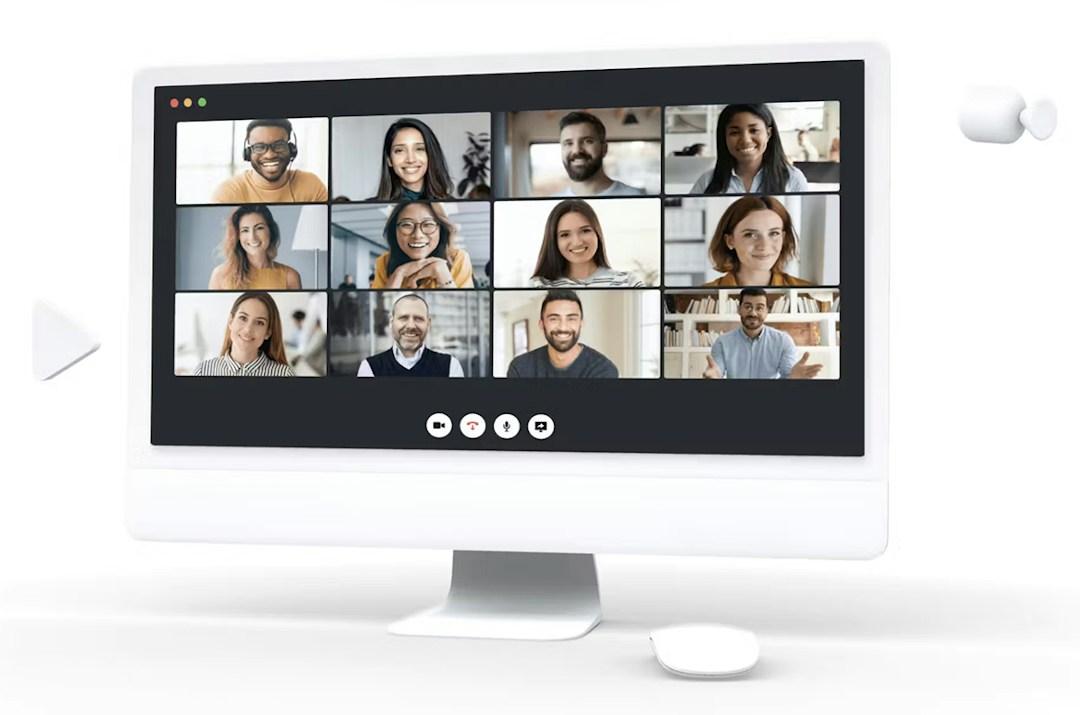
As a business communication platform, Nextiva has much more than just video conferencing. It also has voice calling, internet fax capabilities, and virtual collaboration tools like screen sharing.
Nextiva's Professional plan includes:
40 participants for conference calls
Unlimited video conference calls
No meeting time limits
Note that you'd need to upgrade to the Enterprise plan to invite unlimited participants and access video conference recordings. However, Nextiva does give you the option to livestream town hall meetings via YouTube to reach a wider audience.
Nextiva has collaboration tools like screen and file sharing. But if you want interactive tools like polls, roll call, and whiteboards, you'd be better off choosing a different web conferencing solution.
As an HD video and audio conferencing platform, 8x8 works for small and large businesses alike. It offers dial-in numbers for 50+ countries and makes meetings secure with features like end-to-end encryption, meeting locks, and participant permissions.
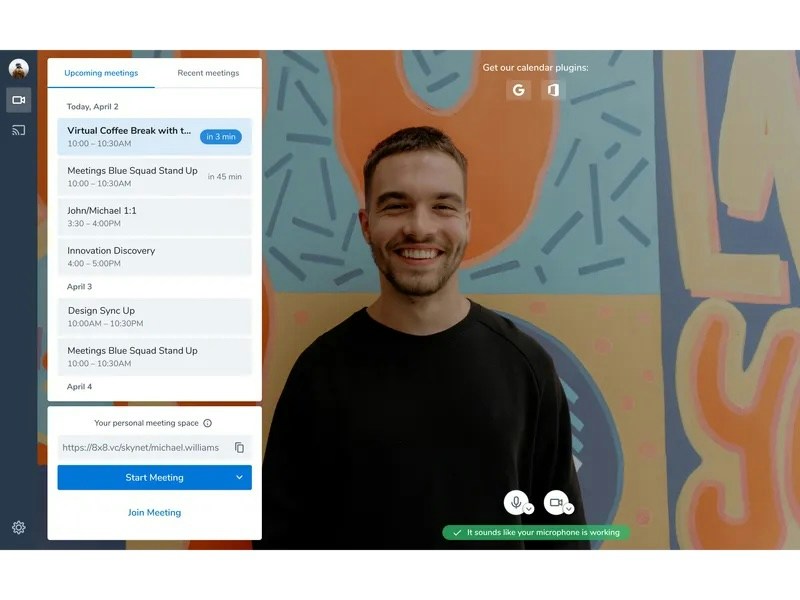
When you host video conferences with 8x8, you can also stream to a larger audience via YouTube Live. Afterward, you can use the platform's AI-powered insights to review summaries, check engagement, and listen to call recordings.
The X2 plan supports:
500 active participants per meeting
YouTube livestreaming for larger audiences
Because 8x8 is a contact center and communication platform, it's best for organizations that need a unified solution for internal connections and customer engagement. If you need a corporate video calling solution only, another option on this list would be better.
Lark is a productivity app where your team can host interactive video meetings and work together in real time. It supports everything from one-on-one video calls to video conferences with hundreds of attendees and dozens of breakout rooms.
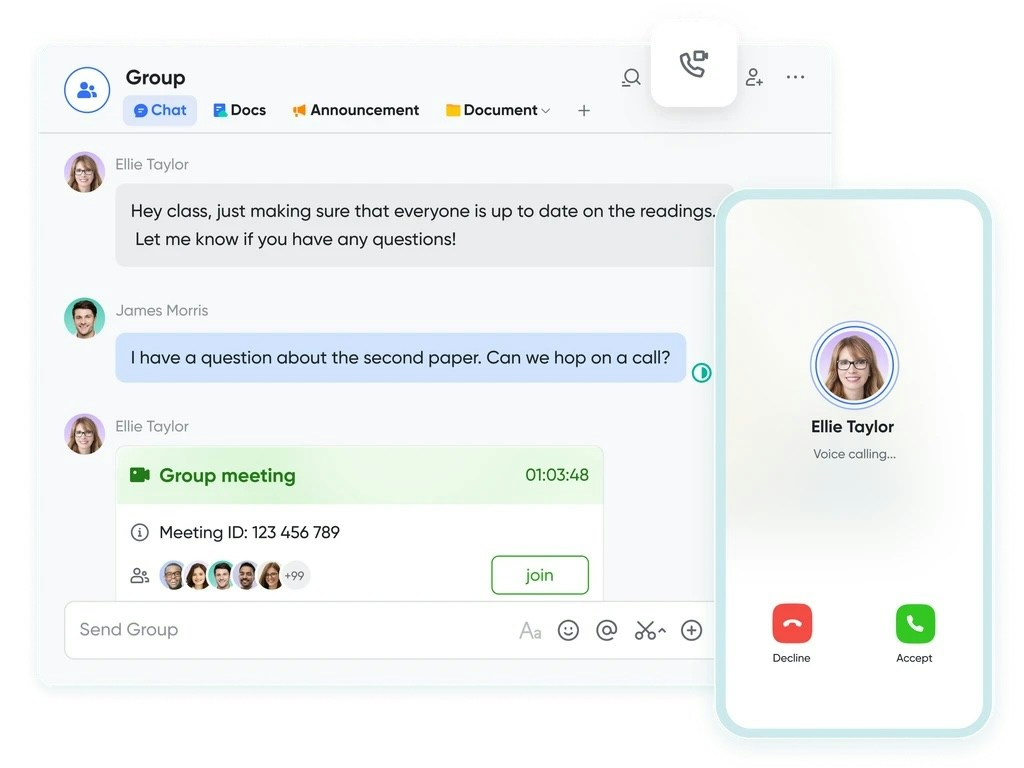
When you want to work with colleagues or clients in real time, Lark has the tools you need. During video conferences, you can work together on live documents and view real-time translations. You can also catch up with colleagues who couldn't attend via Lark's automated meeting transcriptions.
Lark's Pro plan includes:
500 meeting participants
24hr meetings
1TB cloud storage
If you need to use Lark for all-hands meetings or enterprise-level corporate communications, it could get expensive quickly. All plans include Lark Webinar, but it only supports 100 participants. To include more, you'd have to pay per attendee.
Pumble is a team collaboration app that supports video conferencing, voice calls, and messaging. With Pumble's video messaging tool, you can also record and send asynchronous communication to colleagues.
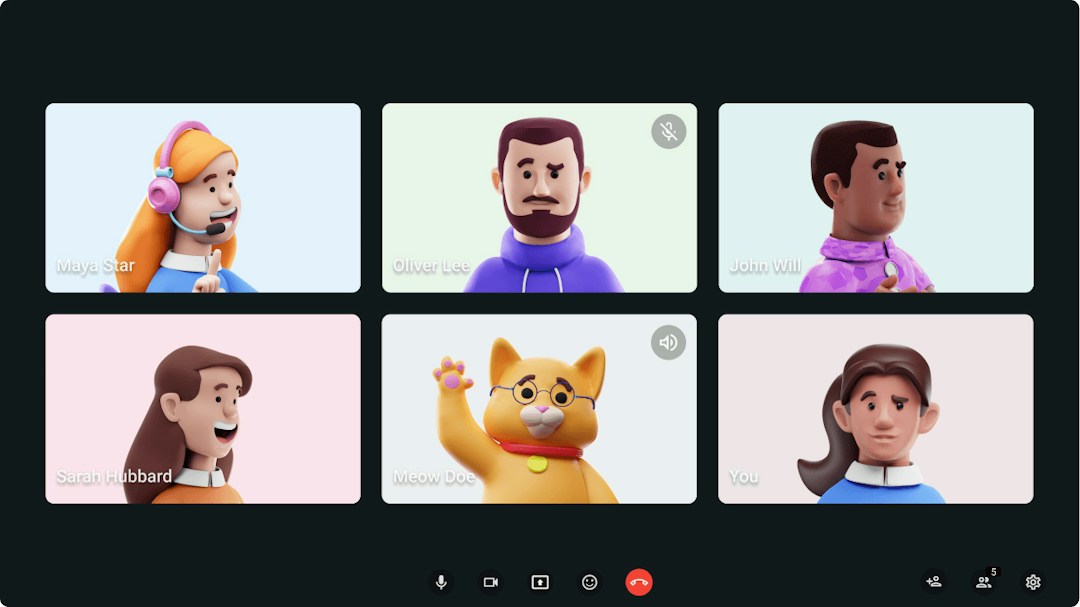
Pumble's free plan is relatively generous and includes unlimited users, one-on-one video meetings, and video messages. To meet with a larger team, however, you'd need to upgrade to a paid plan. Pumble's Pro plan includes:
25 participants
10GB file storage per seat
Unlimited video messages
Even Pumble's top-tier Enterprise plan limits video conferences to 50 members. If you need an enterprise solution for all-hands meetings with more than 50 attendees, you'd be better off with a different platform.
Using the Whereby API and SDK, you can embed video calls into the communication platforms your organization already uses. You can also use Whereby's standalone meeting tool to connect one-on-one or host video conferences with teams, colleagues, and clients.
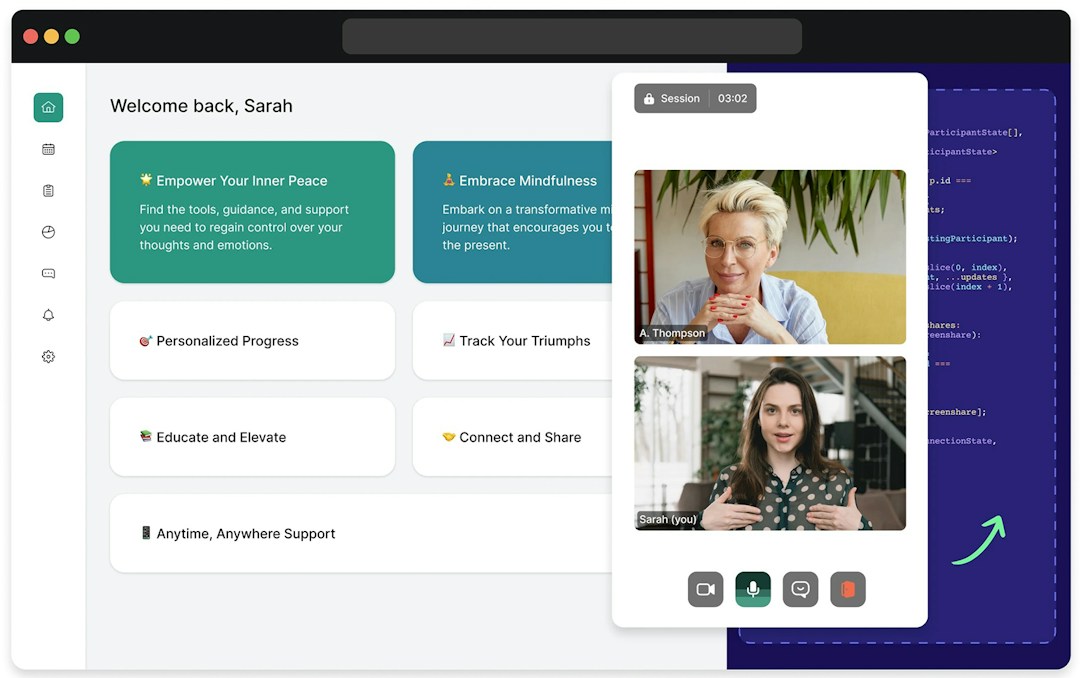
With the Whereby API, you can use a pre-built user interface or customize it to fit your organization's needs and style. You can also set up breakout rooms to meet with smaller groups and record calls to reference later. The Build plan for Whereby Embedded includes:
2,000 participant minutes per month
Extra minutes available as an add-on
Recording and live streaming at a per-minute rate
With Whereby Meetings, you can create custom rooms, collaborate with whiteboards, and interact with emoji reactions. This tool also includes breakouts for running smaller workshops and events. The Pro plan for Whereby Meetings includes:
100 attendees
No meeting time limits
3 meeting rooms
If you need video conferencing for enterprise, Whereby isn't the best option. Its meeting tool allows up to 200 attendees per meeting, and its API plans include 2,000 participant minutes per month. For frequent large video calls, you'd be better off with another tool.
With Gather, you can create a virtual headquarters for your organization, complete with avatars and an interactive setting. Team members can start daily huddles in the moment, plan video conferences in advance, and chat throughout the workday.
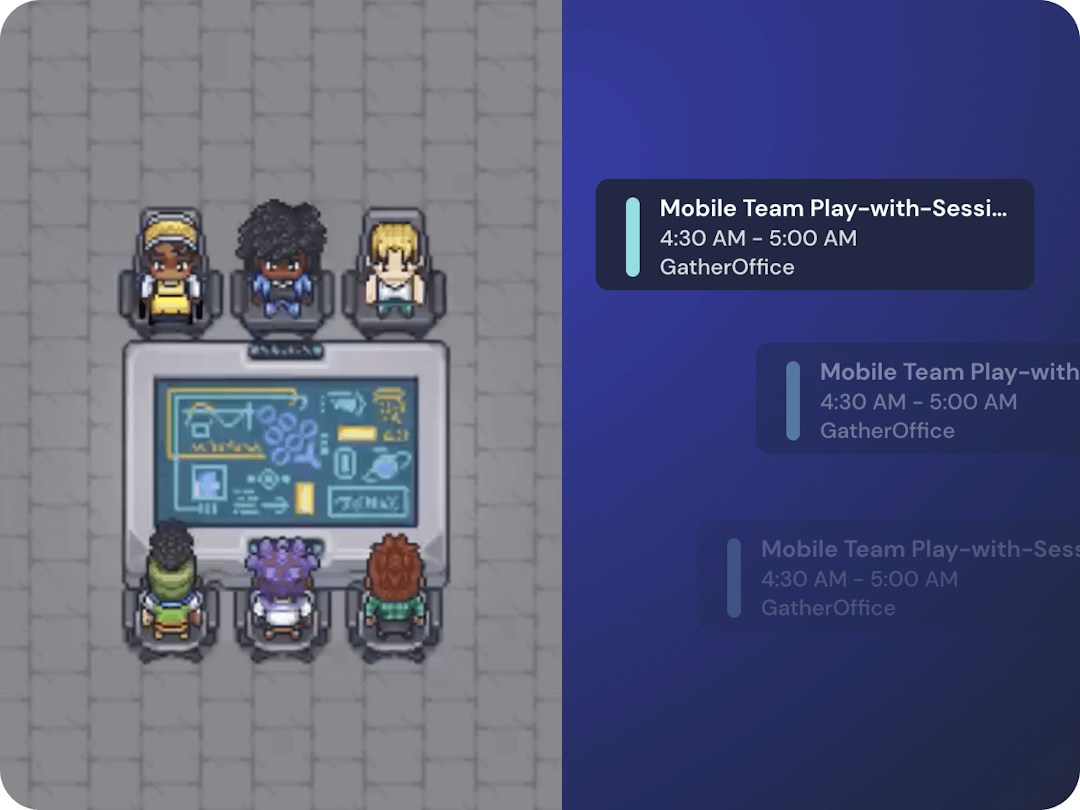
Gather lets you share your screen over a quick video call with colleagues and run multi-day virtual conferences with hundreds of attendees. Free plans support up to 10 users, while paid plans include:
500 users
Unlimited video chat
Multi-day events
One of the biggest perks of Gather is its customizable environments and immersive settings. If your team doesn't need a virtual workspace to host video calls or plan video conferences, another option on this list would be a better fit.
All video conferencing software free plans are limited, but that doesn’t mean you need to pay for a tool right away. Here’s how to choose a free or paid online meeting tool if you’re hosting:
Instant, short virtual meetings
Live events and webinars
A wide variety of online events
If all you need is the power to set up a video meeting with a few attendees and a short duration, opt for a free plan. It will allow you to host smaller calls while maintaining access to important features like screen sharing, chat, Q&A, and recording.
If you’re interested in web conferencing, with longer event times and larger audiences, you’ll be best supported by a mid-tier or premium paid plan. Look out for plans that include multiple speakers at each event so you can book a strong line-up.
Some video conferencing platforms offer usage-based plans for enterprises. If you’re growing rapidly and are hosting multiple types of events (e.g. meetings, webinars, demo calls, and conferences), you need a multipurpose platform that comes under one single bill. In this case, a free plan probably won’t cut it.
Pro tip: With Livestorm’s generous free plan, you can access all our webinar and event features for meetings and events of up to 20 minutes. That way, you can play around and get to know the platform before you choose a paid plan.
Ever sat through an online event where technology fails, and things fall apart? It’s the worst-case scenario, but it can be avoided. When it comes to achieving the best video conferencing setup, the software you choose will have a big impact.
Before you commit to a subscription, make sure your video conferencing platform has all the bells and whistles, including:
Breakout rooms for focused discussion and collaboration
Google Calendar and email integration
Browser-based access
Recurring events
Automatic email invites and reminders for attendees
Screen and media sharing
Automatic recording
Engagement features like chat boxes, Q&A, emoji reactions, and polling
Capacity to host enough attendees (depending on the size of your audience)
Compatibility with a range of devices
Dial-in by phone (in case of poor connection)
Strong security features (we've listed the most secure video conferencing platforms for you)
You’re hosting your first virtual meeting, and everything is going great - but is that really what you look like from that angle? Most laptops come with built-in video conferencing cameras. But let’s face it: they can be pretty mediocre.
From poor camera quality to crackling audio, these built-in features could hold you back. For a more professional (and flattering) video conferencing setup, pick out the hardware yourself.
Let’s look at the key considerations for your video conferencing setup:
Sound clarity
High-quality video
Bright lighting
Crisp sound quality is a must when hosting professional events, as you don’t want to miss anything clients or colleagues say. A strong pair of headphones with a built-in microphone will ensure you can be heard clearly, too.

Try these top picks:
Apple Airpods: With exceptional sound quality and portable design, Airpods are a must for busy professionals who want discreet headphones to use on the go.
Jabra Evolve2 40: Designed for comfort with built-in noise isolation, this Jabra headset is ideal for those who expect to be in and out of calls all day.
Do you need a microphone? In some cases, a good pair of headphones is all you need. But if you lead a lot of virtual meetings or record podcasts or webinars, take a look at our recommendations for the best microphones for video conferencing.
Pro tip: Try free noise-canceling software like Krisp if you expect to host events from noisy locations. Krisp uses artificial intelligence to reduce distracting sounds like traffic, pets, keyboard strokes, and echoes.
Leave poor camera quality and unattractive angles behind—and never look back, because you’re about to get a proper webcam. Even if you do have a laptop with a camera, there’s no reason why you should be hunched over it while trying to impress important stakeholders.
Choosing a new webcam is a great way to improve video quality and give your video calls an upgrade. Try one of these top standalone video conferencing cameras:
Logitech Brio 4K: You’ll be in good hands with most Logitech cameras, but we’re especially fond of the Brio 4K, which includes facial recognition technology for extra security.
Razer Kiyo: A powerful little camera with a built-in ring light for extra illumination, the Razer Kiyo is a great solution if your desk faces a wall and you want to skip expensive lighting solutions.
Whether you have an office or you work from home, it can be tricky to get the best lighting for video conferencing. Bright, natural lighting works best, but you can’t rely on the weather—and not everyone has the luxury of a desk near a window.

If you need to bring artificial light into your setup, try one of the best lights for video conferencing:
Cyezcor Video Conference Lighting Kit: This lighting kit is smaller than your average ring light, and clips to your computer screen, so you don’t have to find space for an unwieldy lamp. The ring shape distributes light evenly onto your face for a more flattering appearance.
Neewer Video Conference Lighting Kit: The Neewer kit opts for a square, LED light with the handy addition of a remote control to help you control the brightness from where you’re sitting. You can even try out its color filters if you’re interested in achieving different camera effects.
Pro Tip: Avoid mixing light sources if you can. Sitting next to a window with a desk lamp switched on isn’t ideal for light clarity as it may cast shadows and interfere with your camera's light adjustment settings.
You’ve decided on your web conferencing hardware and software. Now it’s time to choose a professional background and brush up on your virtual etiquette. Follow these video conferencing tips to host a successful virtual event.
If you lose connection or have to switch to audio during your video conference, it can look unprofessional and disrupt the flow of the call. Check your internet speed in a few seconds with the Google-recommended Network Diagnostic Tool from Measurement Lab.
Try connecting your laptop directly to the router with an ethernet cable instead of using wireless for a more stable connection. We also recommend using a browser-based video conferencing platform like Livestorm rather than a desktop app that results in lower latency.
Ever sat through a painful 10 minutes of technical issues during a virtual event? It’s never a good look to be fumbling for the unmute button when hosting a video conference.
Make sure you’ve logged into the software for a practice run beforehand to get yourself familiar with the layout and functionality. Many video conferencing providers will gladly run a demo for you, so take time to book one.
We recommend choosing a decluttered, neutral background to reduce distractions and keep things looking professional. If this isn’t possible, you’ll want to choose a virtual background instead.
Also, make sure the room has privacy and no background noise from the street, the kitchen, the bathroom, or wherever else other people might be.
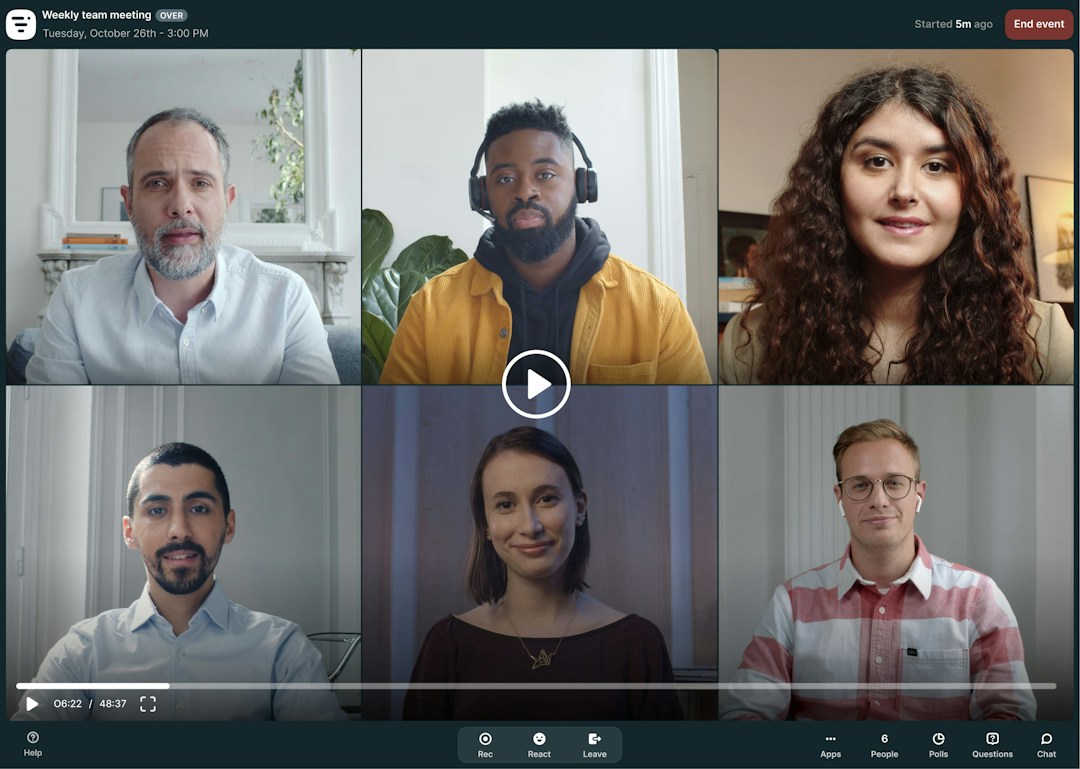
Think of the room you’re hosting from like a conference room. They’re usually equipped with stationery, drinking water, and tissues. Use a similar setup for your video conferencing space.
Make sure you have everything you need within arm's length before your next teleconference. You should also keep your room at a moderate temperature, and make sure you’re comfortable to avoid getting flustered during the call.
Hopefully you're using web conferencing because you want to be more efficient. If that's the case, your web conferences need to be well-planned and have a logical flow. Even if you have a clear agenda in your head, write it down.
It's also important that everyone else understands the agenda ahead of time. This lets them prepare for the parts of the meeting that are most relevant to them.
No matter how well you plan your video conference, a solid backup plan is a must in case things go wrong. Did the internet give up the ghost? Solved if you appoint a co-host using a separate connection and who’s ready to seamlessly step in and keep things rolling.
It always pays to arrive early to your video conference, especially if you’re the one hosting. You can download and install updates with time to spare and get your presentation open and ready to go. Don’t forget to plug in your laptop charger or mute your phone.
It can be annoying when Slack notifications pop up throughout a presentation. Or worse, a sensitive email could arrive with a subject line that you don't want others to see. To be safe, close all unnecessary programs and turn off notifications while sharing your screen.
Just because you know who everyone is, they might not know each other. Keep attendees engaged and make them feel valued by introducing anyone joining in for the first time. As a standard practice for great internal communication, take the time to explain who they are and why they’re in the meeting.

A boring presentation can cause listeners to tune out or hesitate to join your next team chat. A great video conferencing presentation should:
Have a clear goal or purpose
Have a neat visual style
Focus on a 3-5 key ideas
Keep them as concise as possible
Invite engagement and allow others to comment
If you’re using Livestorm you can use the Handouts app to easily share your slides and other resources during the call, allowing attendees to download files straight from the event room.
The worst meetings happen when everyone sits quietly while one person drones on for an hour. Not only do most people forget the main points, but you also miss key moments for feedback.
Encouraging attendees to ask questions should move the event forward, not slow it down. With Livestorm, you can use the chat tab to greet attendees and remind them to ask questions in the questions tab without interrupting the meeting. Get everyone to upvote questions and use emoji reactions to boost participation and help prioritize important queries.
Despite your best efforts, mistakes will happen. The internet might drop out, your microphone could stop working, or your slides might be out of order. Don't panic.
Even if it’s a client onboarding session, it doesn't have to be perfect every time. It's more important that you're confident and clear, and that they leave the session with valuable takeaways. Everyone will remember the insights you bring, not the tiny technical issues.
If issues do happen, Livestorm has you covered with our private chat feature. It allows you to speak to moderators privately so you can fix problems behind the scenes without causing a fuss.
In this video, we break down how to host a successful virtual event in 7 easy steps. From planning to promotion and following up with your event registrants, you'll learn what steps to take before, during, and after your video conference.
When you’re ready to get started, try Livestorm. With our video engagement platform, you can boost your team’s productivity, deliver powerful onboarding sessions, and even reach new audiences.
With the right video engagement platform, you can create a great user experience and maximize opportunities for engagement, education, and conversions.
Video engagement refers to how much your audience pays attention to and interacts with your video conferencing event. You can measure it using metrics like registration signups, chat messages sent, and replay views.
If your whole team is suffering from meeting fatigue, try using video engagement features to capture their interest:
Video chat: Chat boxes are a handy place for meeting attendees to post ad hoc questions, interact with each other, and share links, all without interrupting the speaker's flow.
Polls: You can introduce polls whenever you want to check your understanding or gather feedback during the meeting.
Q&A: Built-in Q&A functionality will make dealing with audience questions much slicker. Platforms like Livestorm will notify you when a participant asks a question and give other audience members a chance to upvote questions they’re interested in.
Digital whiteboard: Get creative as you brainstorm with your team in real-time or set mini-tasks for participants to complete on a whiteboard like Miro.
Multimedia sharing: The ability to easily share a presentation, play a video clip, or pre-recorded audio makes your meetings more dynamic and keep your audience alert.
Screen sharing: Perfect for problem-solving or training, a good video conferencing platform will allow you to share your screen and demonstrate a workflow on camera.
If you’re using a reliable video engagement platform like Livestorm, you’ll have all the tools you need to host interactive webinars and events that meet your business objectives. With the right software suite, you’ll keep your team engaged, wow your clients, and get results for your business.
You may also like
Table of content
You’re only 3 minutes away from your most engaging webinars.
Try it nowVideo conferencing is a live video-based meeting between two or more people. It uses the Internet to facilitate live, face-to-face interactions and collaboration through audio, video, screen sharing, and chat. Video conferencing helps coworkers connect remotely for internal meetings, presentations, and webinars. It can also help you connect with clients from all over the world. You might have heard of popular online meeting software like Zoom, Google Meet, or Livestorm (more on those later!). These tools can be used to facilitate video conferencing in a variety of settings.
The most common types of video conferencing are: Internal meetings Sales calls Product demos Webinars and training Job interviews
The best way to address the disadvantages mentioned above is to use a dedicated video engagement platform. With video engagement, it’s not just two people in a video call: it’s about using your video capabilities to their full potential and getting the best out of your team.
Video engagement refers to how much your audience pays attention to and interacts with your video conferencing event. It can be measured using metrics like registration signups, chat messages sent, and replay views.
Ever sat through an online event where technology fails, and things fall apart? It’s the worst-case scenario, but it can be avoided. When it comes to achieving the best video conferencing setup, the software you choose will have a big impact. Before you commit to a subscription, make sure your video conferencing platform has the following features: Breakout rooms for focused discussion and collaboration Google Calendar and email integration Browser-based access Recurring events Automatic email invites and reminders for attendees Screen and media sharing Automatic recording Engagement features like chat boxes, Q&A, emoji reactions, and polling Capacity to host enough attendees (depending on the size of your audience) Compatibility with a range of devices Dial-in by phone (in case of poor connection) Strong security features (we've listed the most secure video conferencing platforms for you)
Try Livestorm for free
Get started in minutes and run your first engaging webinar today.