How to Create Transcripts From Video Content: Step by Step
Published on August 28, 2026 • About 6 min. read

Written by Brillixa Herdhiana
Livestorm's Webinar Kit

Table of content
Share this article
Key Takeaways
Video transcripts enhance accessibility, meet compliance standards, and provide search engines with additional content context, making them valuable assets for content creators
Four transcription methods exist with varying trade-offs: AI-powered webinar platforms offer integrated automation, standalone AI tools suit one-off projects, human services ensure accuracy for high-stakes content, and manual transcription works for budget-limited scenarios
AI-generated transcripts require editing to remove filler words, verify speaker labels, and correct terminology before use, though this editing takes significantly less time than manual transcription
Transcripts can be exported in multiple formats (TXT, SRT, VTT) and repurposed into diverse content assets including captions, blog posts, social media content, and email sequences, with single webinars producing 13+ content pieces
Uploading transcripts as captions to platforms like YouTube and publishing them on websites improves search engine visibility and helps large language models surface video content
If you produce video content, a transcript is one of the easiest ways to get more out of everything you produce. Turning speech into text makes your videos accessible to more viewers and helps you meet compliance standards. Transcripts also make it easier to repurpose webinars and give search engines more context about your content.
The best method to use depends on factors like video source, speed requirements, and cost. Below, I'll compare four options, from fully automated to fully manual.
4 ways to create a transcript from a video
Each of these methods suits a different type of content and budget. Here's how they compare at a glance:
|
Method |
Accuracy |
Cost |
Speed |
Effort |
|
AI-powered video platform |
High, improves with clear audio |
Included in your platform plan |
Minutes after the session |
Low, runs automatically |
|
Standalone AI tool |
High, improves with clear audio |
Separate subscription or per-minute fee |
Minutes per file |
Low to moderate, upload and review |
|
Human transcription service |
Highest, with certified options |
Per minute of audio, priciest option |
Hours to days |
Low for you, but requires review |
|
Manual transcription |
Depends on your patience |
Free, aside from your time |
Several hours per hour of audio |
High |
1. How to transcribe a video using an AI-powered webinar platform
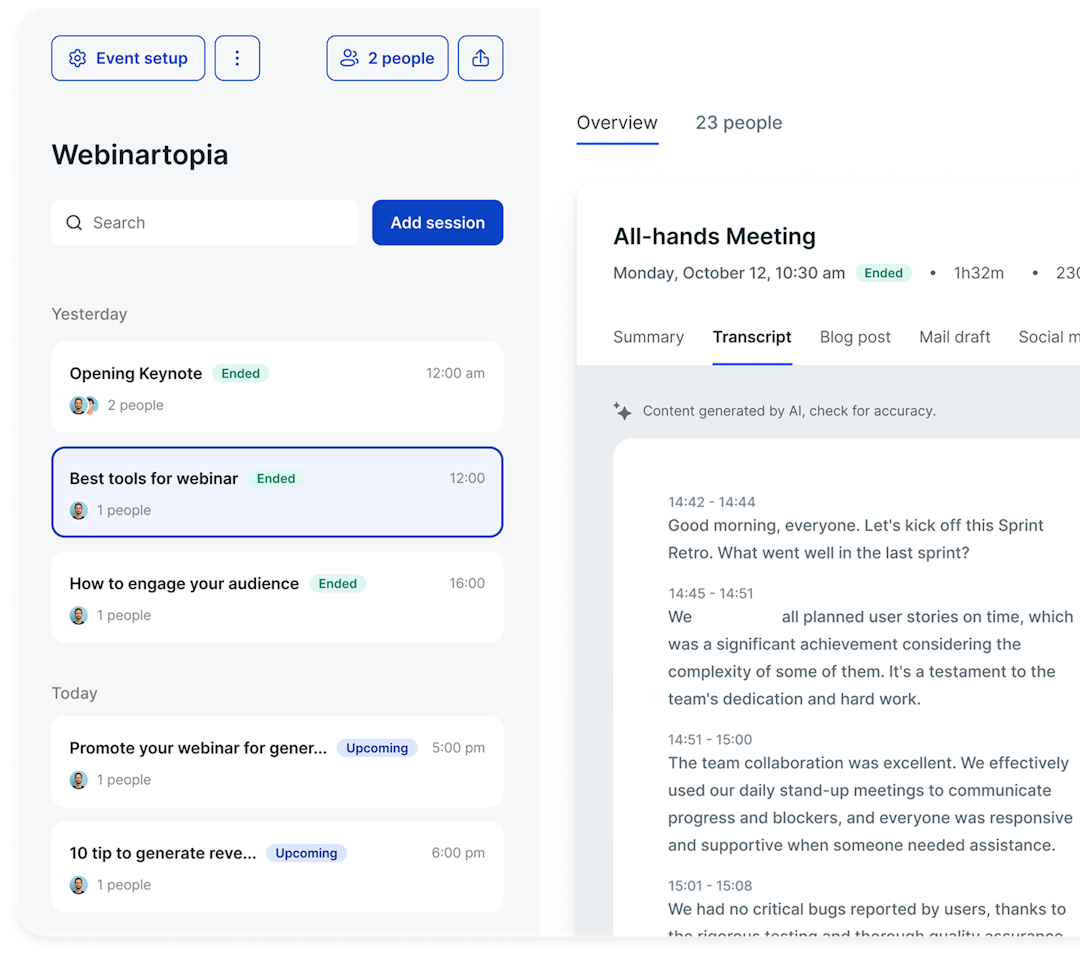
If you host webinars, meetings, or training sessions, the simplest option is to let your video platform handle transcription for you. Many tools automatically generate a video transcript when you record content. There's no file to download, convert, or upload to a separate tool.
When comparing platforms, look at transcription accuracy, speaker detection, export formats, and language support. For example, Livestorm generates AI-powered webinar transcripts, detects who's speaking, and supports multiple languages.
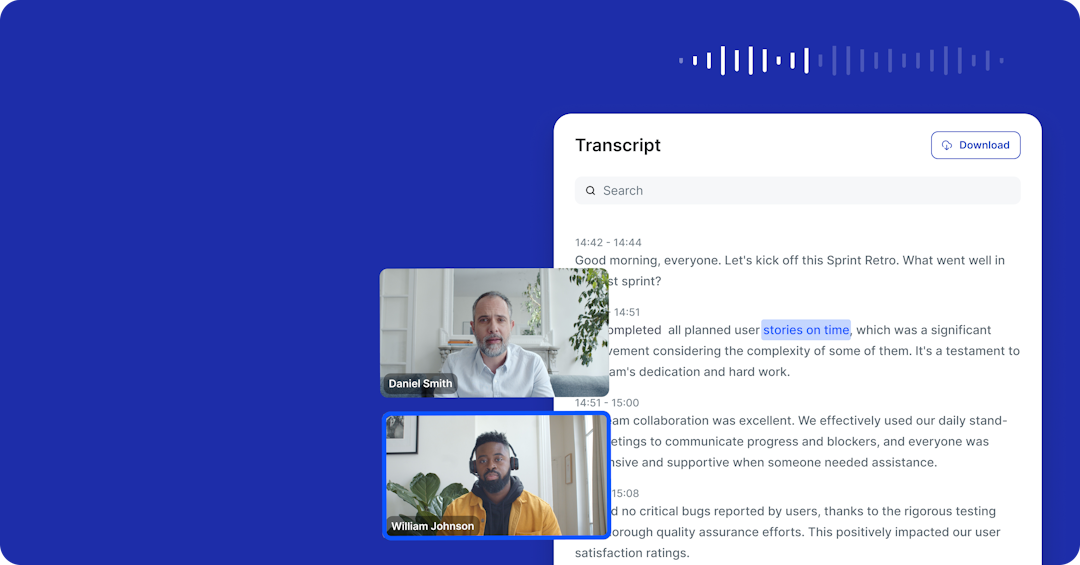
Here's how these AI-powered webinar platforms work:
Step 1: Enable transcription settings. Some platforms transcribe every recording by default, while others ask you to turn it on per event. Check your settings before going live so you don't have to transcribe after the fact.
Step 2: Select language and speaker settings. Choose the spoken language of the session and confirm speaker detection is on. Accurate speaker labels save you a lot of cleanup later, especially for panels and Q&A sessions.
Step 3: Record or host the session in the platform. Run your webinar, meeting, or training session as usual. Use a good microphone and record in a quiet room to improve accuracy.
Step 4: Let the tool automatically transcribe. As you record, the tool will transcribe your video. Give it a quick spot check after the recording wraps.
2. How to transcribe a video using a standalone AI transcription tool
If you have existing video to transcribe, a standalone AI-powered transcription tool is the fastest route. This method works well for one-off tasks and existing files like an mp4 from a video editor, a screen recording, or a clip a client sent over.
The downside to this method is that you'll have to juggle tools and pay for an additional subscription. The transcript file ends up separate from your video file, which means you have to manage exports and file handoffs.
Here's how to use these AI transcription tools:
Step 1: Prepare the video or audio file. Export your video in a format the tool accepts, such as mp4 or mov. If the tool charges by file size or the upload is slow, extract the audio as an mp3 first. The audio track is all the tool needs.
Step 2: Upload the file to the tool. Upload your file through the tool's web app or drag it into the desktop client. Processing time varies with file length, but AI transcription typically takes minutes rather than hours.
Step 3: Select language and speaker settings. Set the spoken language and turn on speaker identification if the recording has multiple voices. Some tools let you add custom vocabulary, which helps with brand names and industry terms.
Step 4: Generate the transcript. Run the transcription and give the output a quick review.
3. How to transcribe a video using a human transcription service
When accuracy is nonnegotiable, hire a professional. Human transcription services are the standard for legal, medical, and compliance content, where a misheard word can have real consequences.
However, this method tends to take longer and cost more. Expect to wait anywhere from a few hours to a few days depending on the tier you choose. You'll typically have to pay per minute of audio, which adds up quickly for long recordings.
Here's how these services work:
Step 1: Choose a service and accuracy tier. Compare services on accuracy guarantees, turnaround options, and confidentiality terms. If your content is regulated, check for relevant certifications and ask whether the service signs non-disclosure agreements.
Step 2: Submit the file and any glossary or speaker notes. Upload your recording along with anything that helps the transcriber get it right the first time: speaker names, technical terms, acronyms, and product names. A short glossary can noticeably cut down on corrections later.
Step 3: Review the returned transcript against the recording. Even professional transcripts deserve a check. Spot-check the transcript against the recording, paying extra attention to names, numbers, and any passages the transcriber flagged as unclear.

4. How to transcribe a video manually
Sometimes the old-fashioned way works best. Manual transcription makes sense for short clips, material too sensitive to outsource, or projects with no tooling budget.
You'll pay with your time, though. Transcribing an hour of audio by hand can take several hours.
Step 1: Set up a player with adjustable playback speed. Open the video in a player that lets you slow playback and rewind with keyboard shortcuts. Slowing the audio to around 75% speed lets you type along without constantly pausing.
Step 2: Transcribe in passes, then verify. Do a first pass to capture the words without worrying about perfect punctuation. Then, replay the recording at full speed against your draft to catch anything you missed or misheard.
Step 3: Format speaker labels and timestamps as you go. Add a speaker label each time the voice changes, and drop in a timestamp at regular intervals or at each topic shift. Doing this during transcription is much easier than reconstructing it afterward.
What can you do with a video transcript?
Once you have a transcript in hand, you can quickly turn it into a content asset. Here's how to get it into shape and put it to use.
Review and edit the raw AI transcript
AI-generated transcripts benefit from a quick edit before you share them or use them for content repurposing. Focus on these areas:
Remove filler words and false starts so the text reads cleanly
Confirm speaker labels, especially in panels or Q&A segments
Check terminology, product names, and proper nouns the AI may have misheard
Add or adjust timestamps so readers can jump to the right moment in the video
This pass usually takes a fraction of the time you'd need to manually transcribe video to text.
If your webinar reaches viewers in more than one language, translate the cleaned-up transcript before you export or repurpose it. Tools like Lara Translate can translate a full transcript in seconds, so the blog post, social clips, and email sequence you build from it work in every language your audience speaks.

Export the transcript in the right format
The right export format depends on where you plan to use the transcript. Many transcription tools let you export the same transcript in several formats, so you rarely have to choose just one.
Plain text (TXT) works for blog drafts and internal notes, while SRT and VTT files include the timing data video players need for captions. A timestamped document is best for meeting notes and interview records.
Turn a transcript into video captions
Most major players and social platforms accept SRT or VTT files for video captions. By adding captions, you increase accessibility for viewers with hearing loss let anyone follow along with your videos, even if they watch with out sound.
Repurpose a transcript into written content
As Livestorm's 2026 Webinar Benchmark Report shows, a single webinar can produce 13 or more content assets. Your webinar transcript gives you a headstart on repurposing video content into written formats like blog posts, social media posts, and email sequences.
With Livestorm, you can easily repurpose content from any webinar you host. Our AI tools automatically turn your webinar content into drafts for you to review and publish.
Make video more visible in search with transcripts
Whether you're targeting traditional SEO or AI search visibility, video transcripts can help. Uploading the transcript in caption form to video platforms like YouTube and publishing transcripts on your website can both help search engines and large language models (LLMs) find and surface your video content.
Which video transcription method is right for you?
The right video transcription method comes down to where your video originates and what's at stake for your content. Standalone AI tools are best for one-off files, human services cover high-stakes content, and manual transcription works when tooling isn't an option.
But if you host webinars, meetings, or training sessions regularly, you need an option that's both reliable and efficient. Using a transcription tool built into your webinar platform removes any extra steps or subscriptions.
Livestorm generates transcripts for every webinar, with speaker detection, support for multiple languages, and automated repurposing. Try Livestorm for free and see how it fits your workflow.


Livestorm's Webinar Kit
Download this complete webinar kit of templates to plan your webinars, create promotional banners and, measure their success.

About the author
Brillixa Herdhiana - Senior Growth Manager
Brillixa joined Livestorm as Growth Manager in 2021. Her experience enables her to contribute to business growth through lead generation from ads and organic channels.
Featured resource
Livestorm's Webinar Kit
Download this complete webinar kit of templates to plan your webinars, create promotional banners and, measure their success.