Yes. With a webinar platform like Livestorm, you add LinkedIn as a restreaming destination using the Stream URL and Stream Key from your LinkedIn Live event, then go live. Registered attendees watch in the webinar room while your LinkedIn followers watch in the feed.
Webinar
How to restream your webinar to LinkedIn Live
Published on October 26, 2026 • About 4 min. read
Written by Brillixa Herdhiana
The 3-Phase LinkedIn Playbook for B2B Webinars
Table of content
Share this article
Key Takeaways
Restreaming sends one live session to LinkedIn Live and your webinar room at the same time.
You need at least 150 LinkedIn connections or followers to go live.
Start your Livestorm session within 10 minutes of going live on LinkedIn, or the restream can break.
Slides, screen shares, speakers, and videos restream. CTAs and polls stay in Livestorm.
Assign a moderator per platform to relay LinkedIn comments into your Q&A.
To restream a webinar to LinkedIn Live, create a LinkedIn Live event, copy its Stream URL and Stream Key into your webinar platform's restreaming settings, start the webinar, then click Go Live on LinkedIn. With Livestorm, the session runs in the Livestorm room for registered attendees and broadcasts to LinkedIn at the same time, so one stream reaches both audiences. This guide walks through the requirements, each step, and how to run a session that works for both rooms.
What does restreaming to LinkedIn Live mean?
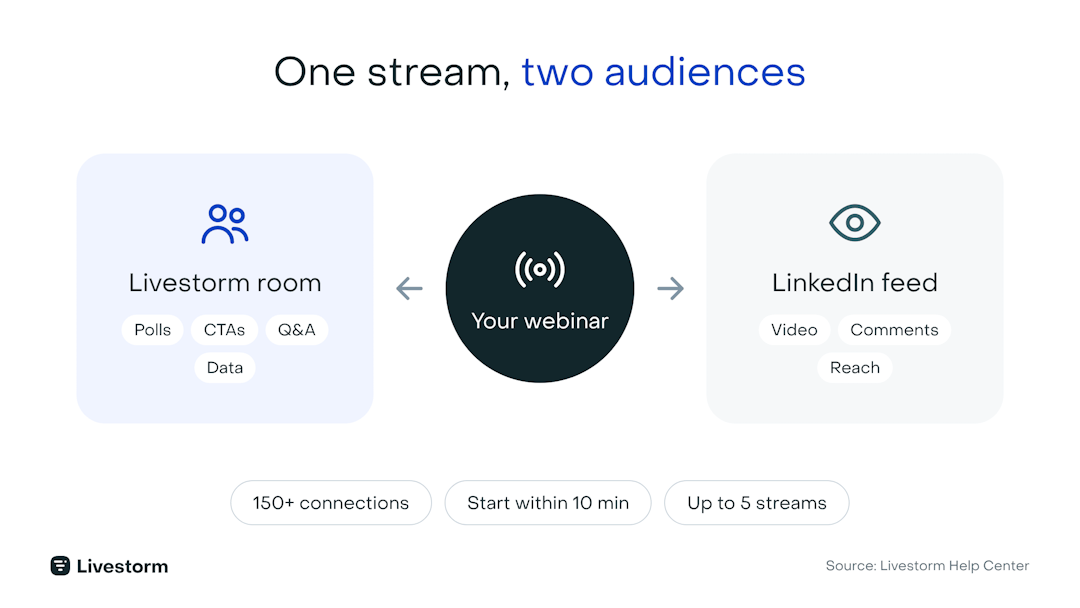
Restreaming means broadcasting one live video to several destinations at once. When you restream a webinar to LinkedIn Live, the session your registered attendees watch in your webinar room also plays live in the LinkedIn feed, on your profile or company Page.
LinkedIn Live doesn't stream on its own: it needs a third-party tool to send the video in. Streaming studios can do that, but a webinar platform does it while keeping what LinkedIn lacks: registration pages, polls, CTAs, analytics, and a recording. For the bigger decision between native LinkedIn and a webinar platform, see how to run a webinar on LinkedIn.
Why restream your webinar to LinkedIn?
Because part of your audience will never open the join link, but they will scroll LinkedIn. According to Benoit Leggieri, Head of Growth at Livestorm, LinkedIn is the number one restreaming destination among Livestorm customers.
Restreaming adds reach. It doesn't replace your registration list. Keep promoting with a LinkedIn Event and email, because registered attendees are the ones you can follow up with.
Before you start: requirements
A Livestorm plan with the restreaming add-on. Restreaming is a paid add-on on Pro (attendee-based pricing), Business, and Enterprise plans.
At least 150 LinkedIn connections or followers on the profile or Page that goes live. That's LinkedIn's minimum to enable the live function.
Destinations set up in advance. You can't add or remove a streaming destination once the event has started.
Recording on. Event recording is enabled automatically when you restream.
You can send one event to up to five streams, and restreamed viewers don't count toward your Livestorm contact quota.
How to restream a webinar to LinkedIn Live, step by step
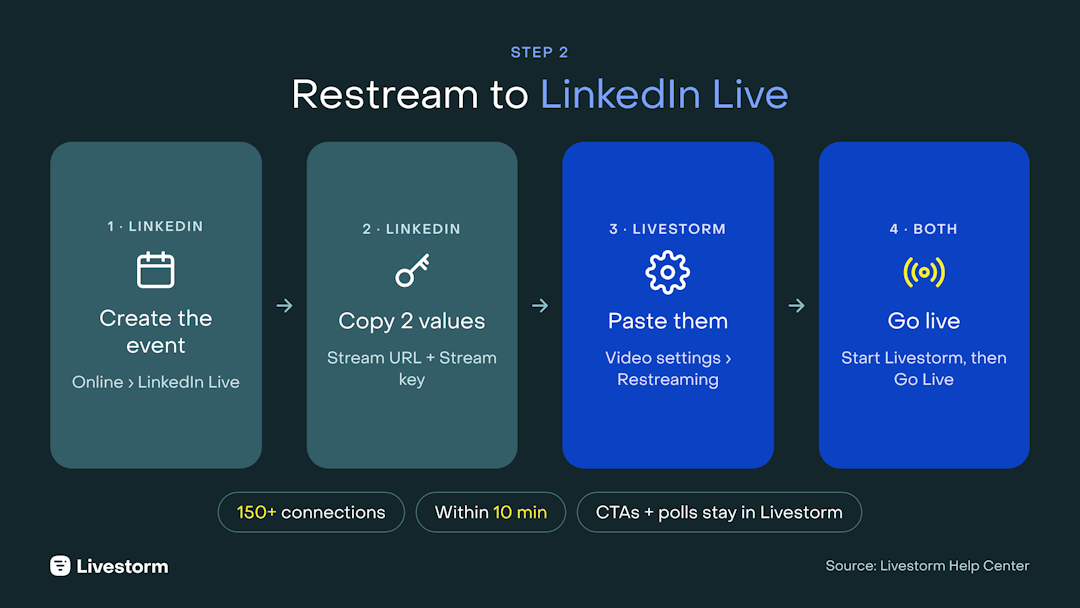
Part 1: Create the LinkedIn Live event
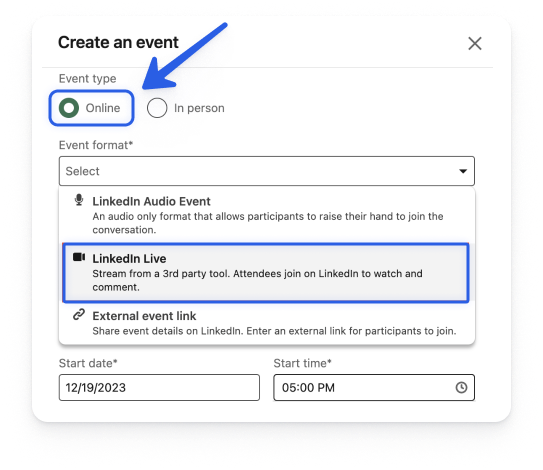
On LinkedIn, select Create an event.
Choose Online as the event type and LinkedIn Live as the event format.
Configure the event and publish it. You can edit the description later, but not the title, image, date, or time of the scheduled stream, so check them first.
Once published, people can register for the event on LinkedIn.
Find your upcoming streams on LinkedIn Go Live.
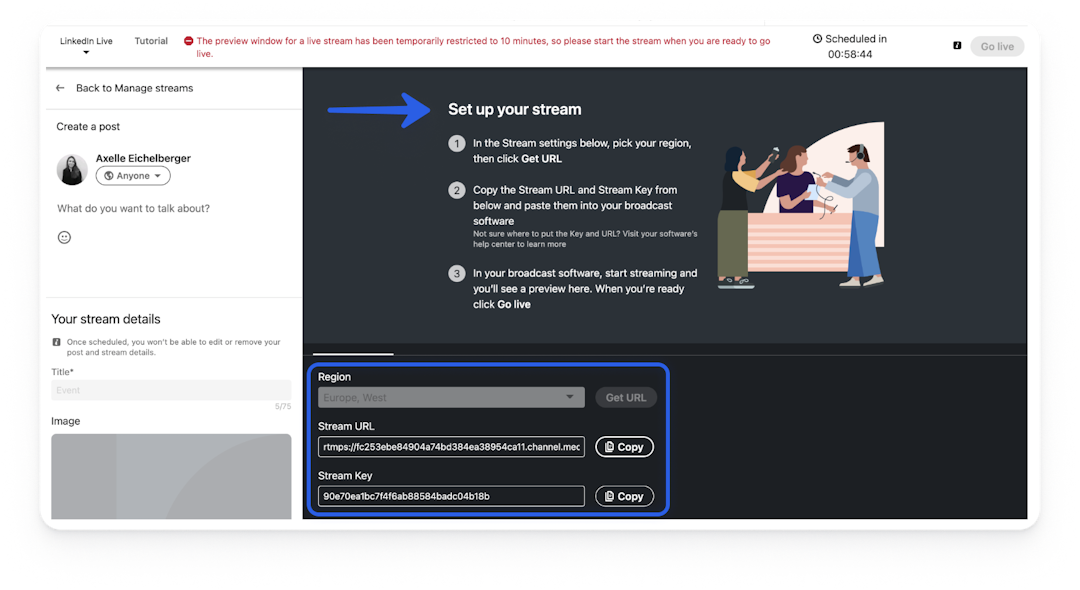
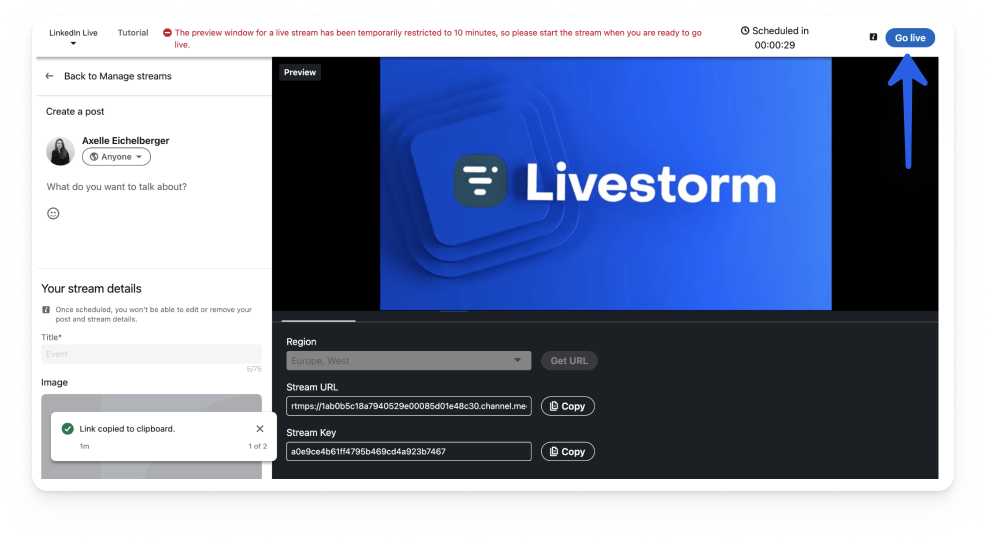
One hour before the event, select Prepare to go live to open the preview room. It shows the Stream URL and Stream Key you need.
Part 2: Add LinkedIn as a destination in Livestorm
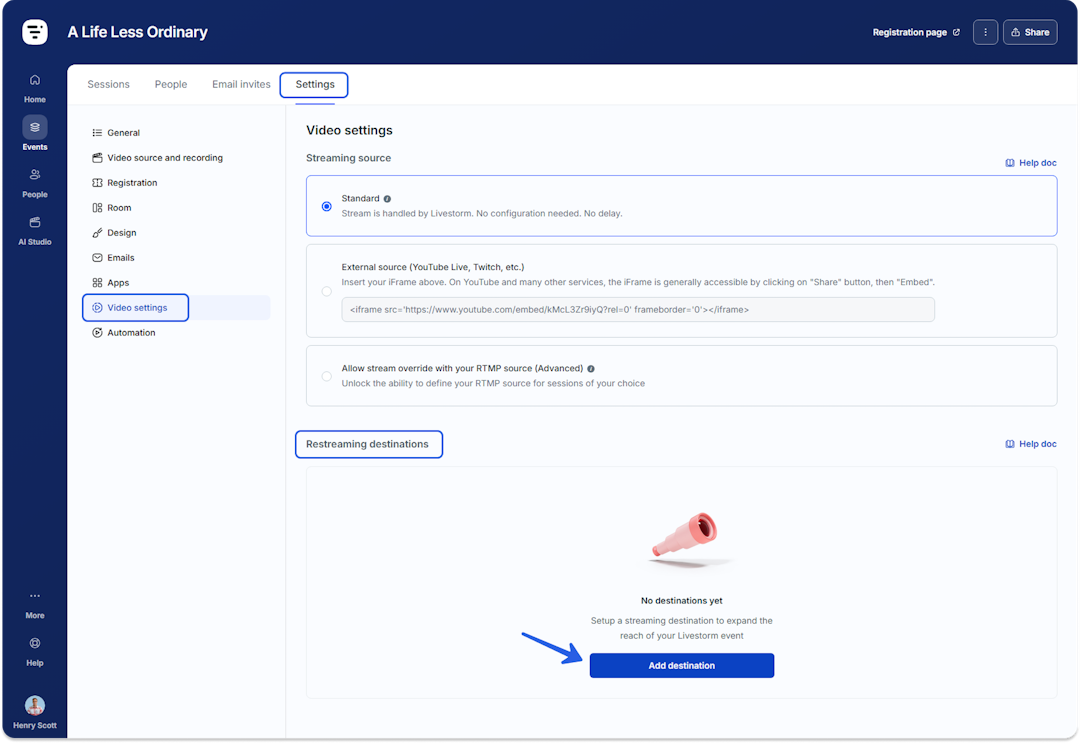
In your Livestorm event, go to Settings > Video settings and, under Restreaming destinations, select Add destination.
Choose LinkedIn.
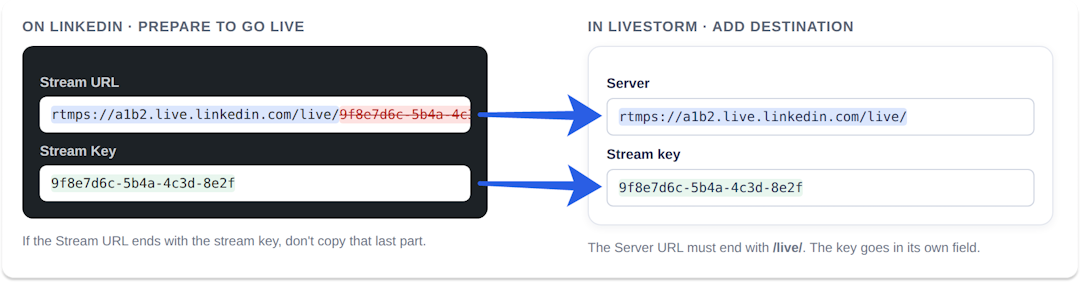
In Server, paste LinkedIn's Stream URL only up to /live/. If LinkedIn appended the stream key to the URL, leave that part out.
In Stream key, paste LinkedIn's Stream Key on its own.
Select Create destination. Your Livestorm event is now linked to your LinkedIn event.
Part 3: Go live
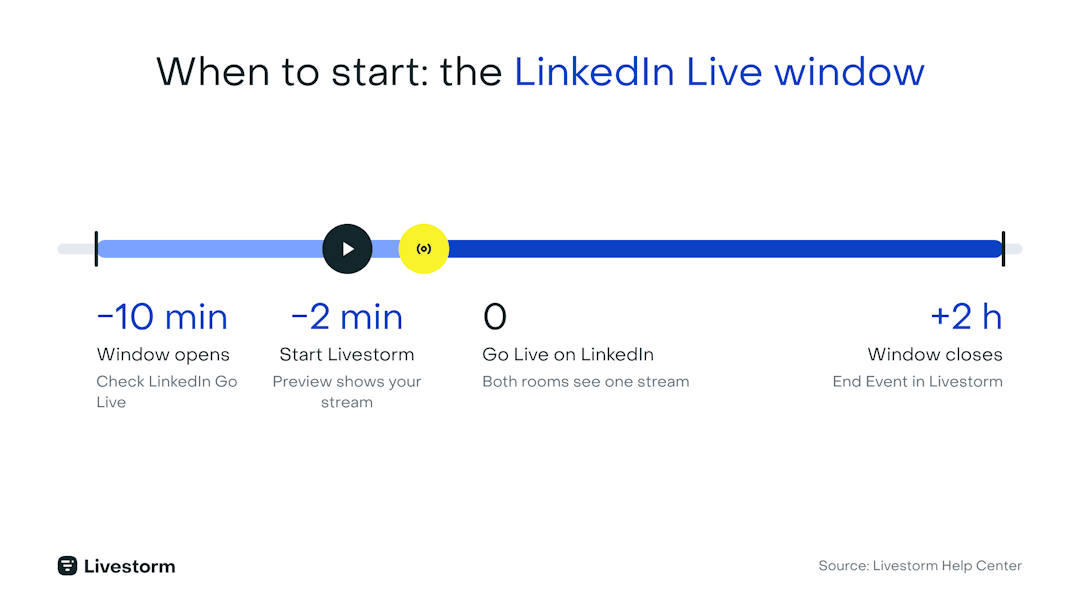
Open LinkedIn Go Live 5 to 10 minutes before the start to check the setup.
Start your Livestorm event about 2 minutes before the scheduled LinkedIn start. The stream appears in LinkedIn's preview.
Once the preview looks right, select Go Live on LinkedIn.
To finish, select End Event in your Livestorm room. This stops the restream on every destination.
LinkedIn's live window opens 10 minutes before your scheduled time and stays open for up to 2 hours after. Start your Livestorm session within 10 minutes of going live on LinkedIn to keep the two in sync. Full technical details are in our restreaming support article.
What restreams to LinkedIn, and what stays in Livestorm
| Element | Restreamed to LinkedIn? |
|---|---|
| Multiple speakers, screen sharing, slides | Yes |
| Videos and media files | Yes |
| Timers and emojis | Yes |
| CTAs and polls | No, Livestorm room only |
| Chat and questions | Separate on each platform |
| Engagement statistics for the session | In Livestorm only |
Plan for it: aim your CTAs and polls at your registered audience in Livestorm, and give LinkedIn viewers a reason to register for the replay or your next session.
Tips for running a webinar for two audiences at once
Assign a moderator for each platform. The LinkedIn moderator posts viewers' comments into the Livestorm questions tab so speakers can answer both rooms.
Open with a waiting-room moment. Show a PDF, a video, or a 5-minute timer so both audiences join without missing content.
Test privately first. Run a few tests with LinkedIn's "Go Live Now" on your own account, without scheduling an event, so you don't notify your network early.
Keep one LinkedIn destination. And double-check the Server and Stream key fields before you start, because destinations can't be edited once the session begins.
More ways to lift live turnout are in our guide to boosting webinar attendance, and the basics of streaming are in how to livestream your online event.
Troubleshooting: why isn't my restream starting?
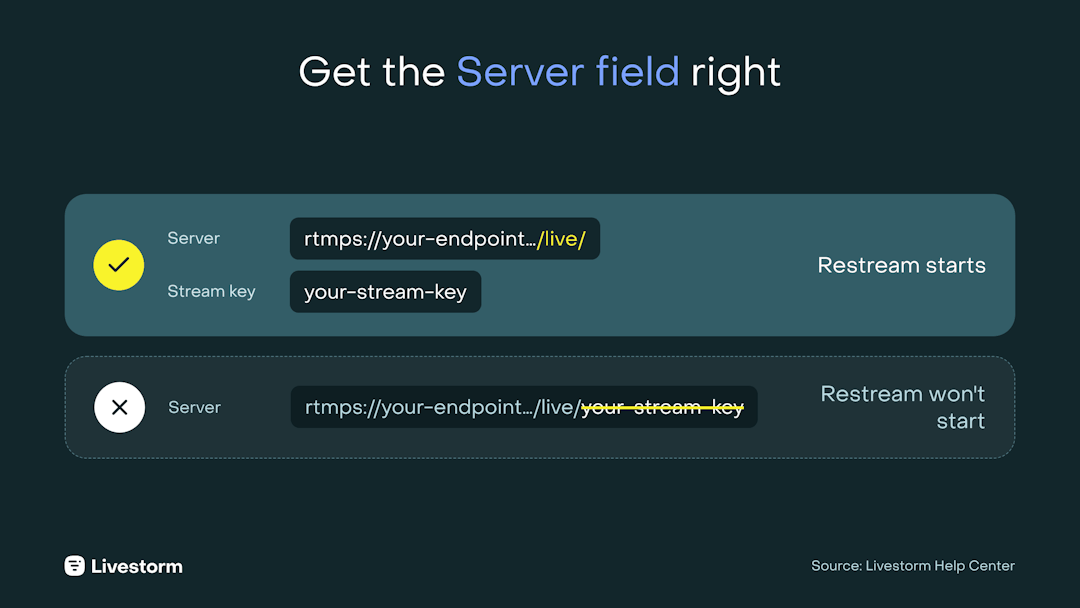
The Server field includes the stream key. The Server URL must end with /live/. Remove anything after it.
You started too late. Start the Livestorm event within 10 minutes of going live on LinkedIn.
You started too early. LinkedIn's window opens only 10 minutes before the scheduled time.
The destination was added during the event. Destinations must be configured before you start.
After the live: turn LinkedIn viewers into your next audience
LinkedIn Live viewers are a warm audience you can retarget as their own segment. If you then run the replay or clips as video ads, LinkedIn also segments viewers by how much of the ad they watched, from 3 seconds up to 97%.
Post the replay and cut the recording into short clips for the speaker's profile.
Turn the slides into a gated LinkedIn Document Ad for viewers and no-shows.
Invite the most engaged viewers to your next session.
Get the full LinkedIn playbook
Restreaming is one step in a bigger campaign. The 3-Phase LinkedIn Playbook for B2B Webinars, built by Livestorm and Sparkforce, covers how to fill the room, run the live, and keep the recording working for months. To restream your next session, start a free trial.
Frequently asked questions
Can you restream a webinar to LinkedIn Live?
How many connections do you need to go live on LinkedIn?
LinkedIn requires at least 150 connections or followers to enable the live function on a profile or Page.
Can I restream to several platforms at once?
Yes. Livestorm supports up to five streams for one event, such as LinkedIn and YouTube at the same time. Set up every destination before the event starts.
Do polls and CTAs appear on LinkedIn Live?
No. CTAs and polls stay in the Livestorm room. Slides, screen shares, speakers, videos, timers, and emojis are restreamed.
Can I edit a LinkedIn Live event after scheduling it?
You can edit the description, but not the title, image, date, or time of a scheduled LinkedIn Live stream. Check them before you publish.
Why isn't my LinkedIn restream starting?
The most common cause is a Server URL that still contains the stream key. The URL must end with /live/. Also check that you started the Livestorm event within 10 minutes of going live on LinkedIn.


Ebooks
The 3-Phase LinkedIn Playbook for B2B Webinars
Promote, host and repurpose your webinars on LinkedIn: ad formats, timing data and frameworks from Livestorm × SparkForce. Free playbook.

About the author
Brillixa Herdhiana - Senior Growth Manager
Brillixa joined Livestorm as Growth Manager in 2021. Her experience enables her to contribute to business growth through lead generation from ads and organic channels.
Related categories
Featured resource
Ebooks
The 3-Phase LinkedIn Playbook for B2B Webinars
Promote, host and repurpose your webinars on LinkedIn: ad formats, timing data and frameworks from Livestorm × SparkForce. Free playbook.
Newsletter