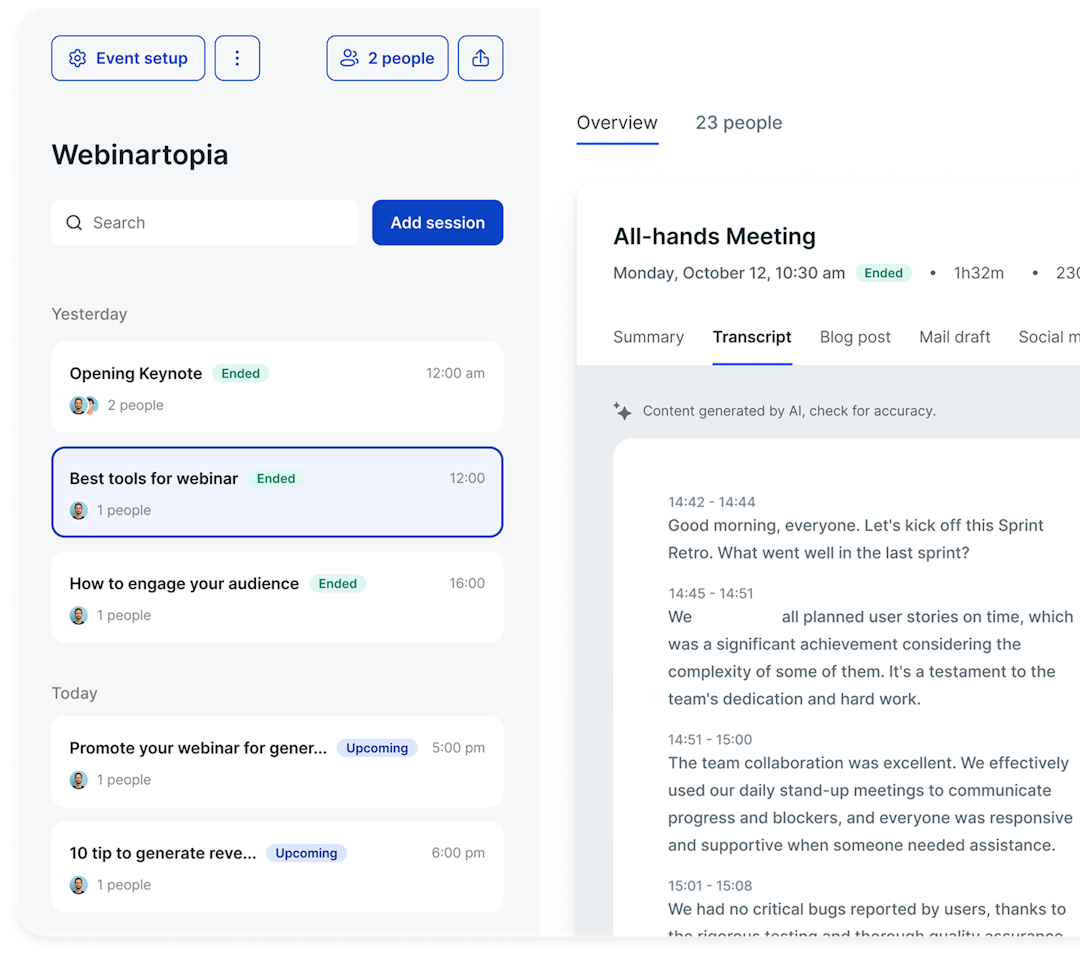
Aim for webinar clips that are 15 to 90 seconds. Shorter clips (15–30 seconds) suit TikTok, Reels, and Shorts, where fast pacing wins. Slightly longer clips (up to 90 seconds) work well on LinkedIn, where audiences will often want a substantive point. Include one idea per clip, and make sure the length fits the idea.
Video
How to repurpose webinars into social clips
Published on August 13, 2026 • About 8 min. read
Written by Brillixa Herdhiana
The Content Repurposing Guide: turn 1 webinar into 10+ marketing assets

Table of content
Share this article
Key Takeaways
One webinar turns into multiple assets when you slice the recording into short, standalone clips.
Each video clip should make a single clear point that stands on its own.
Native clipping inside your webinar tool beats juggling separate standalone editors.
Burn in captions, since most people watch feed video with the sound off.
To repurpose a webinar into social clips, you cut the recording into short, standalone videos (usually 15 to 90 seconds each) that make one clear point and are formatted for a specific platform like LinkedIn, Instagram, or TikTok. The fastest way to create social clips is to use the transcript to find the strongest moments, trim each around a single idea, add captions, and format for the feed.
A one-hour webinar can reliably become eight to 12 social posts. Many teams never get there, though. Livestorm's 2026 Webinar Benchmark Report found that 85% of teams don't repurpose webinar content. They upload the full recording, and that's usually where it stops.
In this guide, I'll walk you through the whole workflow. We'll cover what a good clip looks like, why it's worth the effort, the step-by-step process, and how AI condenses the process from an afternoon of editing into a few minutes.
What does it mean to repurpose a webinar into social clips?
Repurposing a webinar into social clips means turning one long recording into short, self-contained videos that each make a single compelling point. Think 15 to 90 seconds, formatted for a specific platform. Instead of an hour of content that you can share once, you get a month of posts from a single session.
It's all about choosing moments that stand on their own with just enough context that someone scrolling past can get value without watching the full webinar. This often looks like a sharp answer, strong stat, or quotable line.
Why create clips, not just share the replay
A webinar replay asks a lot of the viewer. They have to commit 45 minutes, which isn't always realistic. The average webinar runs 68 minutes but holds attention for only 26 of them, as viewers stay for just 38% of runtime.
Clips change the math. They meet people where they already are (mid-scroll) and ask for 30 seconds instead of 30 minutes. Clips let people discover the webinar, and replays let engaged viewers go deep. Ideally, you want both.
It's worth openly publishing both clips and the replay. Public replays pull 3.7x as many on-demand views as gated ones , so clips that point back to a replay feed into each other. For the big-picture view on getting more mileage out of a recording, see our guide to reusing and repurposing webinar replays.

What counts as a good social clip
A good social clip has a single idea. If you can't summarize it in a sentence, turn it into two clips instead.
In addition, a good clip earns attention in the first two seconds, works with the sound off (captions are nonnegotiable), and makes sense to someone who hasn't seen the full webinar. If a clip only lands for people who were there, it's a highlight for your team, not a post for your audience.
Why repurpose webinars into social clips?
A webinar is content you've already paid to produce. The cost for the speakers, setup, and prep time are sunk the moment the session ends. Clipping lets you keep creating value.
The math is hard to argue with. Repurposing a webinar with AI yields about 13x more content assets from a single recording. But you don't have to pay extra to create more content. Instead, you're reshaping the content that already exists.
Extend reach long after the live date
A live webinar lasts for one day. Clips can run for months.
Stagger them, and a single webinar can become an evergreen drip. You can post a clip this week, share another next week, and surface a third when the topic trends again. Each one is a fresh entry point for someone who might watch the full session or follow and register for the next one.
Get more from content you already made
Existing video is the highest-leverage content many marketing teams have, but it often goes unused. The number one reason? Time. Lack of time is the single biggest blocker to repurposing webinar content, mentioned by 32.3% of surveyed marketers.
That's exactly why a repeatable workflow is more impactful than a burst of effort. When clipping becomes a defined step in your process rather than an afterthought, the time cost drops and the output stops depending on your team's whims.
Feed channels that reward native video
Social platforms push native video harder than links or static posts. A vertical clip uploaded straight to LinkedIn, Reels, or Shorts take up more space in the feed than a link back to your site.
Social media promotion should be a key part of your wider webinar promotion plan. Fold clips into your strategy, and they'll double as top-of-funnel reach for the next webinar.

How to repurpose a webinar into social clips, step by step
Start before you hit record, use the transcript to find moments quickly, and then schedule the content drip.
Here's the process end to end:
Plan your clips before the webinar. Mark likely soundbite moments in the run-of-show and brief speakers to answer in self-contained chunks.
Use the transcript to find clip-worthy moments fast. Scan text instead of scrubbing video.
Cut each clip around one idea. Keep it to 15–90 seconds, with the hook first and one takeaway.
Caption, brand, and format per platform. Burn in captions, match the aspect ratio.
Schedule and drip the clips. Stagger them across multiple weeks.
Step 1: Plan your clips before the webinar
The best clips are already in process before the session starts. As you build the run-of-show, note the moments most likely to clip well. For example, you might highlight a myth you're going to bust, a surprising number, a customer story, or a punchy answer to the question everyone asks.
Then brief your speakers. Ask them to answer questions in complete thoughts rather than in meandering threads. Have them restate the question before answering it.
For example, a speaker who says, "The biggest mistake people make with onboarding is…" makes clipping easy. But one who says, "Yeah, like I mentioned earlier…" will require more extensive editing.
Step 2: Use the transcript to find clip-worthy moments fast
Don't scrub the video. Just skim the transcript.
Scanning text is far faster than dragging a playhead back and forth, and it lets you spot self-contained moments at a glance. The Q&A section is often the richest part, because each question-and-answer pair is a ready-made clip with its own built-in setup. Livestorm's AI webinar transcripts generate automatically after each session, so you can scan quickly.
Mark timestamps as you go. By the time you've read through once, you should have a shortlist of eight to 12 candidates.
Step 3: Cut each clip around one idea
Trim each clip to a single takeaway, somewhere between 15 and 90 seconds. Lead with the hook rather than the windup, because the first two seconds decide whether viewers keep watching.
Never cut an answer away from the question. For instance, a brilliant reply that starts with "It depends on your funnel stage" doesn't say as much without the question that prompted it. Keep the pair together, or add a one-line text setup so the clip stands alone.
Step 4: Caption, brand, and format per platform
On social media, people tend to keep content muted. So, assume they'll have the sound off when they watch your videos. This makes captions a necessity, not a nice-to-have. An AI caption tool can generate these automatically so you're not transcribing by hand.
Then, format for the destination where you plan to publish. Use vertical 9:16 for Reels, Shorts, and TikTok and square or vertical for the LinkedIn feed. Keep your text and logo inside the safe zone so nothing important gets cropped by the platform's interface. And add a light brand treatment so the clip is recognizably yours.
Step 5: Schedule and drip the clips
Resist posting all 10 clips at once. A single webinar should feed your calendar for weeks, not flood it for a day.
Stagger the clips so each gets its own moment in the feed. Then, revisit the strongest ones when the topic comes back around. Handled this way, one webinar turns into a month of social content, all pointing back to the replay and toward registration for your next event.
Create webinar clips faster with AI
AI has turned clipping from an afternoon of editing into a few minutes of review. AI tools transcribe the session, surface the strongest moments, and generate captioned, platform-ready clips for you to approve rather than build from scratch.
The payoff is real. AI repurposing saves around six hours per webinar, roughly 4x faster than clipping by hand. Using AI also cuts video creation cost by about 78%, close to €1,190 saved per webinar.
And it still creates a competitive advantage. Only 11.5% of teams currently use AI to create webinar clips. So getting this right is a genuine edge, not table stakes.
What AI clipping tools do
Most AI clipping tools do four things:
Auto-transcribe the recording
Detect the highlights
Generate captions
Reframe the video to vertical for social
The good ones let you review and adjust before anything posts, so you keep editorial control while skipping the manual grind.
But they can't offer judgment yet. An AI tool can find a clean 40-second segment, but it can't always tell whether that segment matters to your audience. Treat AI as the first pass, not the final say.
The native advantage: capture and clip in one place
Most clipping tools work from uploaded files. You host the webinar on one platform, export the recording, upload it to an editor, and then download the clips. That's several steps too many.
Livestorm, the webinar platform with AI Studio, is built to make repurposing easier. AI Studio turns your webinars into short, captioned social clips automatically.
Its AI-driven highlight detection scans speaker turns and transcripts to find the best moments to highlight. It generates up to 10 clips per session with automated captions and AI-generated titles.
The built-in editor lets you adjust start and end points, rework titles, and add images or branding. Then, you can share the clips to YouTube, TikTok, and other social media platforms.
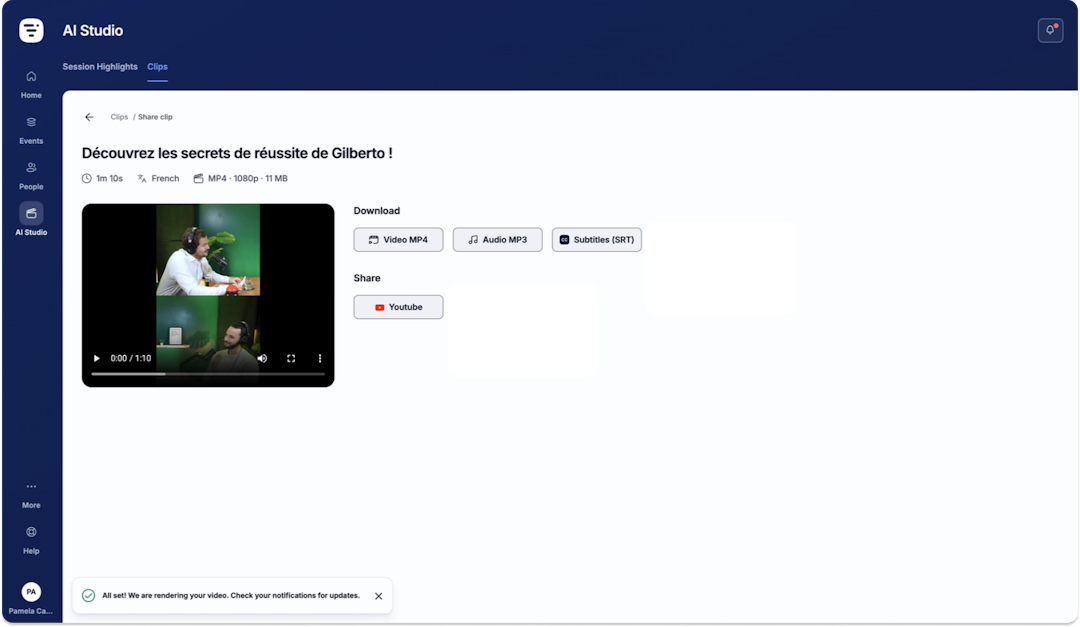
It works on the same platform where you host the event, so it requires no export, separate editor, or re-upload. And because Livestorm captures the recording, the clips are one step away rather than one workflow away. (AI Studio is rolling out. See how AI Studio works for current availability.)
Quick repurposing wins beyond clips
Clips aren't the only way you can repurpose a webinar recording. You can turn the audio into a podcast episode. And Livestorm's AI content repurposing can spin the same session into recaps, blog posts, and social posts.
Common mistakes to avoid when clipping webinars
Weak webinar clips tend to fail for the same handful of reasons. Address these issues, and you'll fix most common problems.
Cutting moments out of context
The most common mistake is isolating a great moment out of context. For example, an answer without its question or a conclusion without its setup reads as a non sequitur to someone who wasn't there. Keep the context, or add quick text overlay to supply it.
No hook in the first two seconds
A clip that opens with "So, um, that's a great question" has already lost the audience. On social media, viewers decide almost instantly whether to keep watching. So lead with the payoff, not the throat-clearing. Put the sharpest line first and let the rest earn its place after.
Ignoring captions and aspect ratio
On social media, vertical feeds with no sound are the norm. This means landscape videos without captions won't get the traction your content deserves. Caption everything, and format for the platform you're posting to, not for the recording you started with.
Turn your next webinar into clips with Livestorm
If you're tired of exporting recordings into a separate editor, the simplest fix is to run and clip your webinars in one tool. Livestorm is a webinar platform with a built-in AI Studio designed to turn each session into ready-to-post social clips, alongside the transcripts and captions that make the workflow fast.
To see how Livestorm works on your own content, start a free trial or compare plans on the pricing page.
Frequently asked questions
What is the ideal length for a webinar clip on social media?
How many clips can I get from one webinar?
Most 45- to 60-minute webinars yield eight to 12 solid clips (and often more once you count the Q&A). Repurposing a recording with AI produces roughly 13x more content assets than leaving it as a single file. The limit is usually how many self-contained moments the session features, not the tooling.
Can I repurpose an old webinar recording into clips?
Yes, you can clip any recording with a clean transcript, no matter how old it is. This makes your back catalog an easy source of ready-made content. Start with your best-performing past sessions, pull the evergreen moments that still hold up, and re-caption them for how feeds look today.


Ebooks
The Content Repurposing Guide: turn 1 webinar into 10+ marketing assets
Turn a single webinar into 10+ marketing assets with the content repurposing method: SEO blogs, video clips, LinkedIn posts, newsletters. Free guide.

About the author
Brillixa Herdhiana - Senior Growth Manager
Brillixa joined Livestorm as Growth Manager in 2021. Her experience enables her to contribute to business growth through lead generation from ads and organic channels.
Featured resource
Ebooks
The Content Repurposing Guide: turn 1 webinar into 10+ marketing assets
Turn a single webinar into 10+ marketing assets with the content repurposing method: SEO blogs, video clips, LinkedIn posts, newsletters. Free guide.
Newsletter